
The items included in this section should be completed after the last instructional day of the current school year.
All items that are applicable must be completed prior to the future year becoming the active year. The active year will be updated on July 1st.
Items included in the processes below are subject to change as NCDPI determines the best practices for closing out the current school year.
Post All Grades
- Consider only opening only one term/task grading window at a time to prevent accidental posting errors.
- Verify all student final grades have been posted by teachers.
- Generate the Grades Report (Grading and Standards) | Infinite Campus to review missing grades. The same report can be used to review all final grades are per PSU policies.
- Run this daily during the grading window to ensure grades are posted accurately.
- Other helpful grade reports may be found in the Google Ad Hoc Community Folder. Review any ad hocs to ensure the information aligns with the data in the school's setup.

CPR Assessments
- Add CPR assessments as applicable.
Final Report Cards
Navigation: Grading & Standards > Reports > Report Card
- Generate Final Report Card | Infinite Campus for distribution.
- Follow PSUs procedures on required information for the final report card. Report Setup | Infinite Campus

Post Transcript Grades
Navigation: Student Information > General Student Administration > Transcript Post Wizard
- Be sure grading windows are closed before posting final grades to the transcript.
- Verify that all final grades are posted by teachers prior to posting final grades to the transcript.
- Follow the steps in the Temporary Procedure for Graduation Requirement Overrides as necessary.
- Post student final grades to transcripts using the Transcript Post Wizard (if applicable). An Ad hoc filter can be used to post for specific student groups as necessary.
- Select all child credit groups when posting transcript grades.
- It is a PSU decision on posting score comments.
- Posting transcript grades can be done multiple times without duplicating or overwriting existing transcript records. Only new transcript grades will be added.

Grade Suppression (if applicable)
Navigation: Student Information > General > Transcripts
- Complete Grade Suppressions per PSU procedures.
- Review the Suppressed Grades article for steps on how to process grade suppressions.
Class Rank (if applicable)
Navigation: Grading & Standards > Reports > Class Rank Report
- Review Class Rank Report | Infinite Campus for each grade level for accuracy.
- Once class rank has been reviewed, determine the date to save a final year report for class rank.
- The Grade Calculation Snapshot will store GPA/Class Rank information in a table as of June 30th. Use the GPA Calculations in Campus | Infinite Campus article to create an ad hoc with this information (optional).

Final Transcripts (if applicable)
Navigation: Grading & Standards > Reports > Transcript Batch Report
- Select the North Carolina Official Transcript report and generate transcripts for any students that earned high school credits.
- Be sure all steps in the End of Year Graduate checklist have been completed before generating final transcripts for graduates.

E-Transcript Information
Automatic Transcript Release Schedule
The College Foundation of North Carolina (CFNC) system automatically queues final transcript requests for all seniors who previously sent a non-final transcript during the year.
Under standard system protocol, queued final transcripts are automatically released 10 calendar days after the school's last instructional day. NCDPI may coordinate with CFNC to establish a statewide release date to allow additional time for schools to post final marks and complete the graduation process.
Note: For school years in which NCDPI establishes a statewide release date, schools should follow guidance communicated through the NCSIS Bulletins and End of Year documentation.
Mandatory Conditions for Automatic Release
To ensure the automatic and timely release of final transcripts, it is critical that schools complete all necessary actions in NCSIS within the designated timeline. See the End of Year Graduate article for necessary steps.
The automatic release will only occur when both of the following conditions are met on the student Graduation tool:
- The Diploma Date field is populated.
- The Diploma Type field is populated.
Consequences of Missing the 10-Day Deadline
If either required condition is not when the CFNC system attempts to release the final transcript, the following will occur:
- Processing Loop: The e-transcript request enters a 9-day processing loop. During this period, the system makes three additional attempts, one every three days, to determine whether the required conditions have been met.
- Successful Processing During the Loop: If the Diploma Date and Diploma Type fields are populated before the end of the processing loop, the final e-transcript is automatically processed and release through CFNC.
- Failure: If the required conditions are not met by the end of the9-day processing loop, the final e-transcript request(s) fails. The student is automatically notified of the failure by email.
- Incomplete Transcript: If the Diploma Date is populated, the Diploma Type is populated, but final marks have not been posted within the required timeline an incomplete final e-transcript will be generated. Schools should ensure final grades are posted promptly to prevent incomplete final transcripts from being released.
Reminder
During this period, the CFNC transcript system remains available for normal operations, such as new transcript requests, and transcript processing activities unrelated to queued final transcript releases.
Summer School calendars can be created in the NCSIS to support a fully functioning summer school that includes student enrollments, schedules, grades and attendance. Review the Summer School articles for step by step directions on creating calendars.
For students completing graduation requirements after the last instructional day of the current year or before the first instructional day of the next year, a summer school enrollment is required to document the completion of the student's graduation requirements. A Summer School Calendar is mandatory to ensure proper data tracking and state reporting. Review the Create Summer Calendar High School article for step by step directions on creating calendars.
All students that attended a summer school program, must have a Summer Education Program. If the PSU does not record summer school information in a summer school calendar, the program must still be assigned to students.
Prior to ending enrollments for the current year, ensure the following tasks have been completed:
- Enrollments are Rolled Forward
- Student Status for CTE Programs have been updated
- Coordinate timeline with EC and other departments that export to third-party vendors to ensure they have finalized any processes for impacted students.
Prior to ending enrollments at end of year, it is recommended to complete the following:
- Post Final Grades to Transcript
- Submit PMR 9
Enrollments for the current year must be ended prior to switching the active year. Enrollments must be ended in a specific order to ensure the proper local end statuses and end actions are associated to enrollment records.
Instructions in the next few articles include steps for processing each of the enrollment groups above. All current year enrollments must be ended prior to changing the active year.
End of Year Graduates
Students that will graduate at the end of the school year will need to have their end status, end date, and end action updated prior to processing retained and promoted students' end enrollments. This process can be done for an individual student by following the Individual Graduate checklist or can be done by creating Graduate ad hoc filter and following the steps below. The sections below provide a guide on all the steps that should be completed for graduates.
ECS students who return for another year in grade 12, should have an end date of the last instructional day of the school year and a P: Promote end action. Follow the steps to Adding an XG Flag article to add an XG flag as applicable. The students should have a future enrollment in grade 12.
Make sure the school context is the current year.
Post Grades to Transcript
Navigation: Menu > Student Information > General Student Administration > Transcript Post Wizard
Verify Graduation Programs
Navigation: Menu > Student Information > Academic Planning > Programs
- Graduation Program
- Use the Academic Plan Status Report | Infinite Campus tool to view students without a graduation program and confirm students have the correct graduation program.
- Please note that students on the Extended Content Standards pathway will not have an NC Graduation Program assigned.
Verify CTE Programs (if applicable)
Navigation: Menu > Student Information > Academic Planning > Programs
- Please see the CTE Concentrator Report document for guidance on the CTE program information.
Update Student Status for CTE Concentrators (if applicable)
Navigation: Menu > Student Information > Program Administration > Course Plan Administration
- See the CTE Concentrator Report documentation for detailed steps for this process.
- This process should be completed after final grades are posted to the transcript.
- Once statuses are updated review the CTE Concentrator Report for guidance on verifying and reporting.
This process is taxing on the system, and it is recommended to be run after regular business hours.
Calculate On-Track Status
Navigation: Menu > Student Information > Program Administration > Course Plan Administration
- Course Plan Administration | Infinite Campus
- This process will run for all students.
- This process will calculate any graduation or academic plan a student is assigned.
- Use the Academic Plan Status Report | Infinite Campus to find students that are not on track.
This process is taxing on the system, and it is recommended to be run after regular business hours.
Review On-Track Status
Navigation: Menu > Student Information > Program Administration > Academic Plan Status Report or Academic Plan Progress Batch Report
- Review student's status towards their graduation program by running the Academic Plan Status Report | Infinite Campus.
- The report can also be used to display the students that are not on-track towards the graduation requirements.
- The Academic Plan Progress Batch | Infinite Campus report can provide progress towards the graduation requirements per individual student.
Verify Post Grad Plans
Navigation: Menu > Student Information > General > Graduation
If using the Course Plan in Student/Parent Portal this field can be populated via the portal but should be reviewed by staff.
Verify Grade 9 Entry Date
Navigation: Menu > Student Information > General > Graduation
- This field is populated based on the 9th grade enrollment record for the student.
- If a date is not entered, review the student's enrollment history to determine the correct grade 9 enrollment. Enter the date of the students first grade 9 enrollment.
- NGA Cohort End Year - This field is populated based on the 9th grade enrollment record for the student.
- NCLB Cohort End Year - This field is populated based on the 9th grade enrollment record for the student.
Add Seals (Endorsements)
Navigation: Menu > Student Information > General > Graduation
- Graduation (North Carolina) | Infinite Campus
- Requirements for Endorsements can be found: High School Diploma Endorsements | NC DPI
At this time, this process is manual.
Review Data on Transcripts
Navigation: Menu > Student Information > General > Transcripts
- Verify graduation requirements are met
- Verify all assessments are listed accurately, including CPR
- Verify programs are reflected correctly on the transcript (CTE)
- Verify seals are reflected correctly on the transcript
Post Diplomas & End Enrollments Using Enrollment End Batch Wizard (Recommended)
Navigation: Menu > Student Information > General Student Administration > Enrollment End Batch Wizard
Prior to ending enrollments for the current year, coordinate with EC and other departments that export data to third-party vendors to ensure they have finalized any processes for impacted students.
This process will end enrollments and post diploma data for students included in an ad hoc created for graduates.
- Enrollment End Batch | Infinite Campus
- Create an Ad Hoc of graduates to ensure only those graduating will receive diploma data.
- Select all calendars of students included in the created ad hoc.
- Select all grade levels of students included in the created ad hoc.
- The End Date should be the last instructional day of the school year.
- The students' Local End Status should be W6: High School Graduate.
- The End Action should be P: Promote.
- The Diploma Date should be the last instructional day of the school year.
- The Diploma Type should be FRC: Future Ready Core or GWC: Graduated with Certificate.
- The Diploma Period should be R: Regular.

Check a few student's graduation tool to ensure diploma files were populated correctly.

Print Final Transcript
Navigation: Menu > Grading & Standards > Reports > Transcript Batch Report
Validate End Status for Graduate Students
Use the Enrollment Summary Details Report | Infinite Campus to review students' end status and end dates. Use the same Graduate ad hoc filter to review just the students that were graduated. This report can be generated in a CSV format to be opened in a spreadsheet view and filtered as needed.
Review the table below to verify that student enrollment records have been updated with the correct end of year values.
| Graduate | Current Year
End Date |
Current Year
End Action |
Current Year
Local End Status |
Future Year Start Status | Future Year Grade Level |
|---|---|---|---|---|---|
| End of Year Graduate | Last Instructional Day | P: Promote | W6: High School Graduate | N/A | N/A |
| EOY ECS Grade 12 Returning | Last Instructional Day | P: Promote | EYC: EOY Completer | E1: Init enroll - this year | 12 (XG Flag) |
End of Year Retentions
Prior to ending retention enrollments for the current year, ensure the following steps have been completed
- Enrollments are Rolled Forward
- Student Status for CTE Programs have been updated
- Graduate Enrollments have been ended
Students that will be retained at the end of the school year will need to have their end status, end date, and end action updated prior to processing promoted students' end enrollments. This process can be done by updating each individual student's current enrollment local end status, end date, and end action or can be done by creating Retention ad hoc filter. The sections below provide a guide on creating a Retention Filter and updating the necessary fields using the filter.
ECS students who return for another year in grade 12, should have an end date of the last instructional day of the school year and a P: Promote end action. Follow the steps to Adding an XG Flag article to add an XG flag as applicable. The students should have a future enrollment in grade 12.
Create Retention Filter
Create a Retention ad hoc filter to use to complete the end enrollment process with the correct information for retained students. This can be completed by creating an hoc using the:
- Advanced Person Search | NC Department of Public Instruction
- Infinite Campus Multi-Select | NC Department of Public Instruction
- Selection Editor | Infinite Campus
Student Numbers can be copied and used in the creation of an ad hoc using the Advanced Person Search or the Multi-Select ad hocs. The Selection Editor ad hoc allows the selection of students from a list.
Any updates to retentions, must be updated in the ad hocs manually.
End Retention Enrollments
Students that will be retained must have their enrollments ended prior to promoted students ending enrollments. Follow the steps below to end retained student's enrollments for the current year. If applicable, graduates should be processed before retentions are processed. Ending retention enrollments should be complete prior to ending promotion enrollments.
Before ending current year enrollments, ensure student enrollments have been rolled forward.
Make sure the school context is the current year.
Navigation: Student Information > General Student Administration > Enrollment End Batch Wizard
- Select the calendar(s)
- Select the grade levels that are included in the Retention filter.
- Select the Retention Ad Hoc created earlier.
- Enter the last instructional day of the school year as the End Date.
- Select EYC: EOY Completer or EYCN: COY Completer - New School as the local end status.
- EYC: EOY Completer applies to any student who has completed the year and is enrolled in school on the last day of the school year is expected to come back to the same school in the next school year.
- EYCN: EOY Completer - New School applies to any student who has completed the year and is enrolled in school on the last day of the school year and is going to attend a new school in the next school year.
- Select R: Retain as the End Action.
- Click Run to end the current year enrollments for Retained students.

Validate End Status for Retained Students
Use the Enrollment Summary Details Report | Infinite Campus to review student's end status and end dates. Use the same Retention ad hoc filter to review just the students that were retained. This report can be generated in a CSV format to be opened in a spreadsheet view to filter as needed. Each student in the filter should have an End Date, End Status, and End Action for the current year enrollment.
Review the table below to verify that student enrollment records have been updated with the correct end of year values.
| Retention | Current Year
End Date |
Current Year
End Action |
Current Year
Local End Status |
Future Year
Local Start Status |
Future Year
Grade Level |
|---|---|---|---|---|---|
| Same School Next Year | Last Instructional Da | R: Retain | EYC: EOY Completer | E1: Init enroll - this year | Same as previous year |
| New School Next Year | Last Instructional Day | R: Retain | EYCN: EOY Completer - New School | N/A | N/A |
Update Retention Future Enrollments
Students' future enrollments have been created, but the grade level may not be correct. If the student's future year enrollment is in the same calendar, then follow the steps below to update the student's grade level. If the student's future year enrollment is not in a calendar with your tool rights, contact the next school or SIS Coordinator to work on the process to update the future enrollment record with the correct grade level.
| Location of Future Enrollment |
Action
|
Calendar Rights Needed | Tool Rights Needed |
|---|---|---|---|
| Current School | Change grade level in the enrollment record in the future year | Future year of current school | Enrollments - Write |
| Different School | Delete enrollment record in the future year | Future year of different school | Enrollments - Delete |
| Create new enrollment record in the future year | Future year of current school | Enrollments - Add |
Navigation: Student Information > General > Enrollments
- Search for the Retention filter by selecting the Advanced button in the student search.
- Select Filter to see the list of available filters. Select the Retention filter created earlier.
- Click Search to select the students in the retained filter.


- Select a student and click on the future year enrollment record

- Select the correct grade level from the grade dropdown.
- Add a start comment (optional)
- Click Save to update the grade level.
 All students future enrollment Start Status must be E1: Init enroll - this year.
End of Year Promotions
Prior to ending enrollments for the current year, ensure the following steps have been completed
- Enrollments are Rolled Forward
- Student Status for CTE Programs have been updated
- Graduate Enrollments have been ended
- Retention Enrollments have been ended
Students that are promoted at the end of the school year will need to have their end status, end date, and end action updated after processing graduate and retained students' end enrollments. The sections below provide a guide on all the steps that should be completed for end of year promotions.
ECS students who return for another year in grade 12, should have an end date of the last instructional day of the school year and a P: Promote end action. Follow the steps in Adding an XG Flag article to add an XG flag as applicable. The student should have a future enrollment in grade 12.
Verify Last Instructional Day
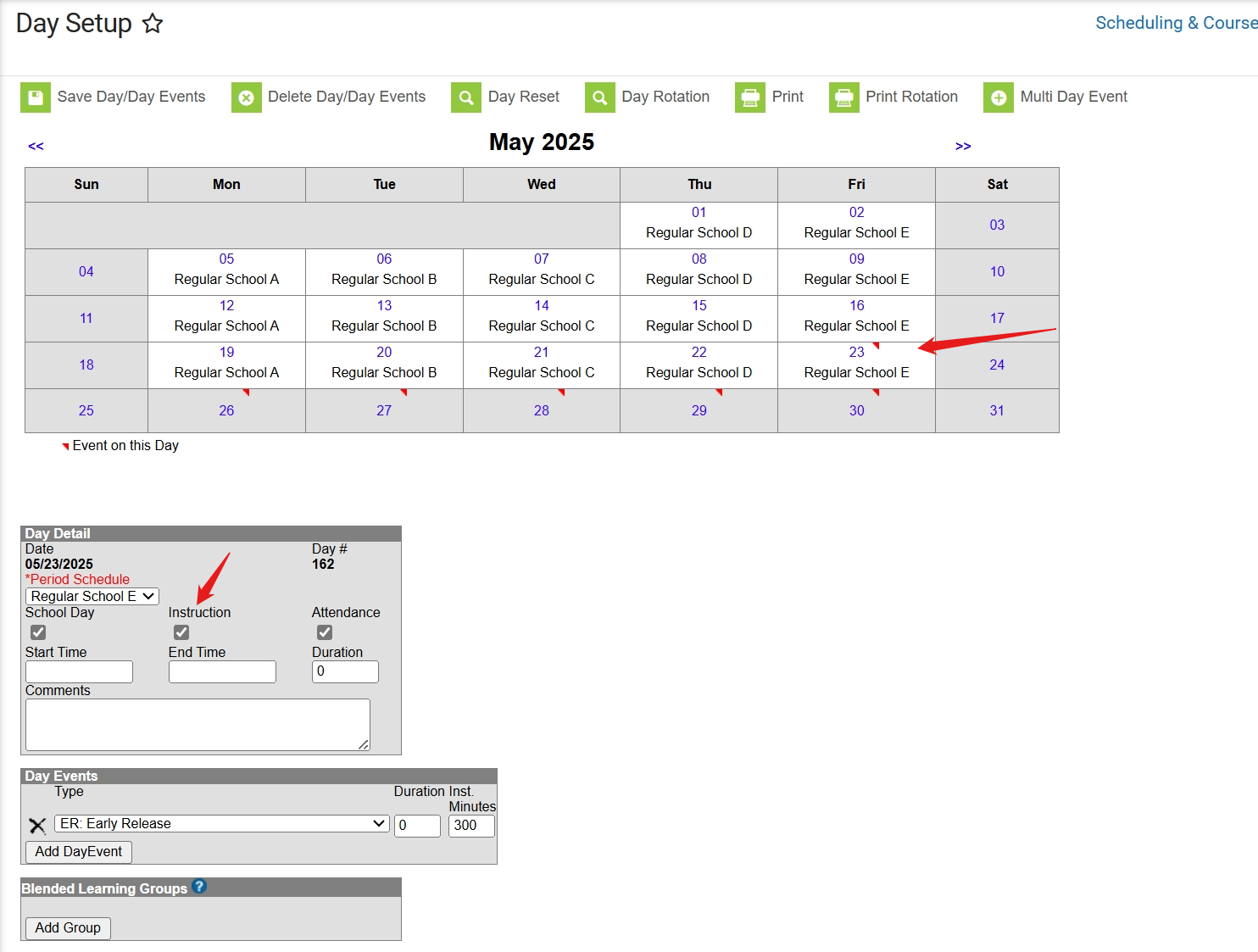
Check that the last instructional day in the day setup is reflected appropriately.
Navigation: Scheduling & Courses > Calendar Setup > Day Setup
- The last day of school should be the actual last day that students were in the building and receiving instruction.
- The instruction checkbox should be marked for the last day.
- This date should also match the end date in the last term for the current year.
- If this date has changed, make sure that School Months have been updated for PMR.
End Promotion Enrollments
Make sure the school context is the current year.
Students that will be promoted must have their enrollments ended after retained students ending enrollments. Follow the steps below to end promoted student's enrollments for the current year. If applicable, graduates and retentions should be processed before promotions are processed.
Navigation: Student Information > General Student Administration > Enrollment End Batch Wizard
- Select the Calendar(s)
- Select Grade Levels.
- Grade levels may need to be completed in two phases, students remaining in the same school and those moving to a new school.
- Enter the last instructional day of the school year as the End Date.
- Select EYC: EOY Completer or EYCN: EOY Completer - New School as the local end status.
- EYC: EOY Completer applies to any student who has completed the year and is enrolled in school on the last day of the school year is expected to come back to the same school in the next school year.
- EYCN: EOY Completer - New School applies to any student who has completed the year and is enrolled in school on the last day of the school year and is going to attend a new school in the next school year.
- Select P: Promote as the End Action.
- Click Run to end the current year enrollments for students.
Validate End Status for Promoted Students
Use the Enrollment Summary Details Report | Infinite Campus to review student's end status and end dates. This report can be generated in a CSV format to be opened in a spreadsheet view to filter as needed. Each student in the filter should have an End Date, End Status, and End Action for the current year enrollment.
Review the table below to verify that student enrollment records have been updated with the correct end of year values.
| Promotions | Current Year
End Date |
Current Year
End Action |
Current Year
Local End Status |
Future Year
Local Start Status |
Future Year
Grade Level |
|---|---|---|---|---|---|
| Same School Next Year | Last Instructional Day | P: Promote | EYC: EOY Completer | E1: Init enroll - this year | Next Grade Level |
| New School Next Year | Last Instructional Day | P: Promote | EYCN: EOY Completer - New School | N/A | N/A |
| EOY ECS Grade 12 Returning | Last Instructional Day | P: Promote | EYC: EOY Completer | E1: Init enroll - this year | Grade 12 (XG Flag) |
Charter School - Last Grade Level Offered
Students promoted from the final grade level in the school should have an End Status of EYCN: EOY Completer - New School and an End Action of P: Promote. These students should have no future enrollment since the next grade level is not offered for the school.
Follow the steps in the End of Year Promotions above to end enrollments for these students.
|
|
Current Year End Status | Current Year End Action | Future Year Start Status | Future Year Grade Level |
|---|---|---|---|---|
| Final Grade Level | EYCN: EOY Completer - New School | P: Promote | N/A | N/A |
End of Year Program Schools
Make sure the school context is the current year.
The following steps must be completed for each program school that contains student enrollments including OEC, OHP, OMP, and LEP.
Navigation: Student Information > General Student Administration > Enrollment End Batch Wizard
Prior to ending enrollments for the current school year, ensure to roll enrollments forward into the future school year using the Enrollment Roll Forward Wizard.
- Run the Enrollment End Batch Wizard process to end enrollments for all students.
- May need to be completed in two phases, students remaining in the same school and those moving to a new school.
- Enter 06/30/20YY as the End Date.
- Select the EYC: EOY Completer as the Local End Status.
- Select P: Promote as the End Action.
- Click Run to end the current year enrollments for students.
Validate End Status for Program Students
Use the Enrollment Summary Details Report | Infinite Campus to review student's end status and end dates. This report can be generated in a CSV format to be opened in a spreadsheet view to filter as needed. Each student in the filter should have an End Date, End Status, and End Action for the current year enrollment.
| Program Enrollment | Current Year
End Date |
Current Year
End Action |
Current Year
Local End Status |
Future Year
Local Start Status |
Future Year
Grade Level |
|---|---|---|---|---|---|
| Remaining in Program School (OEC, OMP, LEP) | 6/30/YYYY | P: Promote | EYC: EOY Completer | N1: Initial Enroll into a Program School | Next Grade Level |
| OHP Enrollments | 6/30/YYYY | P: Promote | EYC: EOY Completer | N/A | N/A |
| Transitioning to Another School (OEC, OMP, OHP, LEP) | 6/30/YYYY | P: Promote | EYCN: EOY Completer - New School | E1: Init enroll - this year | Next Grade Level |
Follow the No Show process for any student that will not be attending the same school in the future year. It is not recommended to delete future year enrollments.
Navigation: Student Information > Program Administration > Federal/State Program Update Wizard
- Programs can be ended in mass using the Federal/State Program Updater | Infinite Campus.
- The following programs should be ended as of 06/30/20YY.
- Digital Learning Dashboard (DLD)
- FERPA
- Homeless
- Read to Achieve
Students who complete the school year and are going to attend a new school in the next school year in another district, will need any associated programs ended prior to releasing transfer records in the NCSIS.
The Early Learning Program should be ended for pre-k students who will transition to kindergarten the next school year. The program would be ended by selecting an end date and choosing a "Reason Exited".
See the NCSIS Program Entry presentation for information on programs: https://go.ncdpi.gov/8adgs
State Reports
Review and complete all state reports prior to changing the active year. Reports may have different due dates, confirm information for each report. Review the State Reporting Due Dates article for a full list of reports and due dates.
Recommended Local PSU Final Reports
Follow your PSUs guidelines for PSU specific end of year reports. Provided below are some reports available in NCSIS that may be used.
- Final Report Cards/Grades
- Report Card | Infinite Campus
- Grades Report (Grading and Standards) | Infinite Campus
- Athletic Eligibility Reports
- Scholar Athlete Reports
- Final Class Rank
- Class Rank Report | Infinite Campus
- The Grade Calculation Snapshot will store GPA/Class Rank information in a table as of June 30th. Use the GPA Calculations in Campus | Infinite Campus article to create an ad hoc with this information (optional).
- Final Transcripts
- Attendance
- Enrollment
Other local reports options may be available on the Google Ad Hoc Community. Please note that reports in the community are provided by PSUs for PSUs and are not vetted by NCDPI. These reports may need to be adjusted to meet local PSU setup.
The following items can be completed in any order but should be completed prior to changing the active year.
Data Audits
- Complete various data audits for data accuracy prior to changing the active year.
- Some recommended audits are attendance, grades, behavior, programs, etc.
End of Year Fees (if applicable)
- Report and bill for end of year fees.
- Follow PSU guidelines for this process.
- Fee Billing Batch Report | Infinite Campus
Pause Automated Tasks
Communicate with third party vendors on dates for pausing and restarting tasks during school year changes.
Task Scheduler
Navigation: System Settings > System Processes > Task Scheduler
- Pause any task scheduler automated tasks until the new year.

Data Extract Utility
Navigation: System Settings > Data Utilities > Data Extract Utilities
- For automated Data Extract Utility jobs, add a check to the Stop Automated Extract checkbox until the new year.

Staff Assignments
Navigation: Census > Staff > District Employment/District Assignments
- Add an end date to staff District Employment record for staff who have left the PSU.

- Add an end date to staff District Assignment for staff who have left the school.

- End access to Campus for staff leaving the school and/or PSU.
- Add/update district assignments for staff that are moving schools.
- Follow your PSU procedures for adding any new staff in NCSIS.
Access Management
Disable User Accounts
Navigation: User Management > User Account Administration > User Account Batch Wizard
- Disable access to Campus for staff, students, and/or parents during the summer months (if applicable).
- This can be performed with the User Account Batch Wizard | Infinite Campus.

Update Portal Access
- Portal access can remain available for parents, however, be mindful that options set in the template selected are accessible to parents and students.
- A new Portal template can be created so parents and students can see only what the PSU desires. (i.e. annual updates in OLR, no schedules, previous year information)
- Portal Display Options | Infinite Campus

Record Retention
Ensure all necessary reports have been printed and placed in students' physical cumulative folders. More information on what is required in a cumulative record can be found here: Local Public School Units | NC Archives.
An optional report available in NCSIS is the Cumulative Labels Report. Below are steps for generating this report.
Navigation: Grading & Standards > Reports > Cumulative Labels
- Print cumulative labels for student files (if applicable).
- The Cumulative Labels Report only prints student transcript information that also includes credits.

Locker Assignments (if applicable)
Navigation: School & District Settings > Lockers > Locker Batch End Wizard
- End locker assignments for the current school year using the Locker Batch End Wizard.

Roll Forward Reports
Navigation: System Settings > System Preferences > Reports Roll Forward Wizard
The Reports Roll Forward Wizard copies report setups from one calendar to another calendar. Roll forward current year reports in each calendar for the corresponding upcoming calendar.
- Select the Source Reports. The source reports are populated according to the calendar chosen.
- Choose the Calendar to copy to.
- See Reports Roll Forward Wizard | Infinite Campus article for more information about modifying reports.

You’ve completed this section.
Choose where to go next.
← Return to End of Year Overview Continue to Change Active Year →
