
Refer to the Calendar Setup | Infinite Campus article for more information on setting up the calendar.
Inclement Weather/Emergency Closure
See the Day Setup article for more information on day events and how to create additional day events if needed. See the NCSIS Day Events article for the standard codes required for North Carolina day events.
Follow the steps below to adjust an existing instructional day in day setup due to inclement weather or emergency closure:
Navigation: Scheduling & Courses > Calendar Setup > Day Setup
- Select the instructional day.
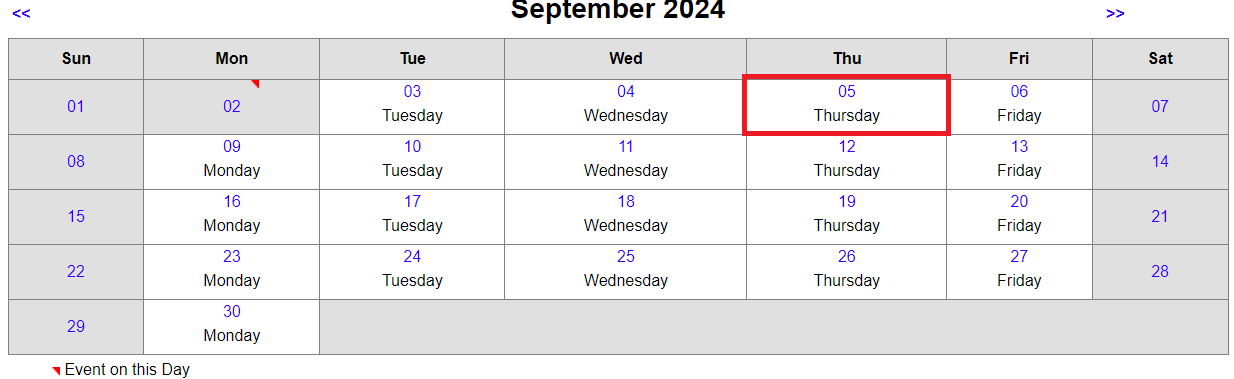
Adjust the day detail based on the scenarios below:
Students Attended for Partial Day
- If a different period schedule should be used due to the inclement weather or emergency closure, choose the appropriate period schedule from the dropdown (Example: Early Release, 2 Hour Delay, etc.)
- Add a Start Time and End Time for the instruction provided. (Optional)
- Add a Day Event Type that has an associated Standard Code of either WC Weather Closure or EC Emergency Closure.
- NOTE: Day Event names may vary per PSU, however each day event must have an associated state defined Standard Code. Required Standard Codes can be found in the Day Events article.
- Enter the number of instructional minutes provided for the day. (Optional) Please review the SASA Manual for details on calculating instructional minutes.
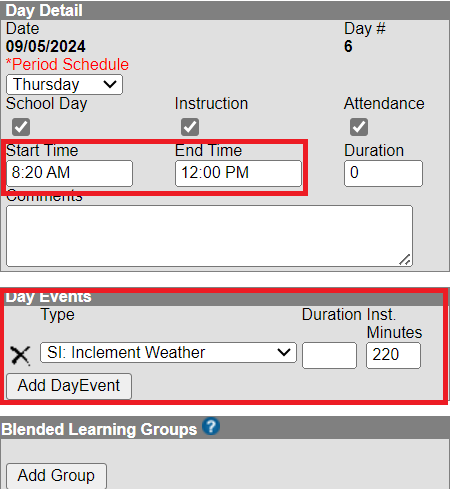
- Click Save Day/Day Events in the upper left of the screen to save the updates.
Students Did Not Attend But Staff Worked
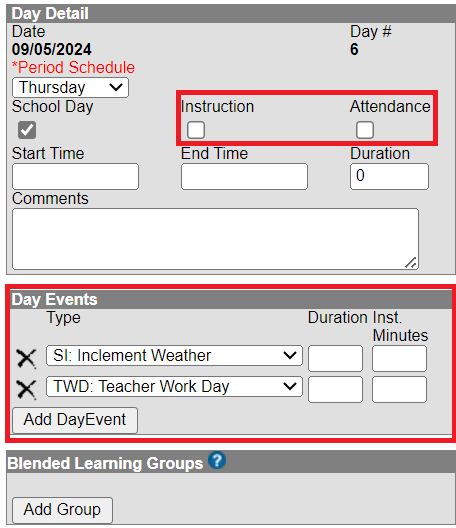
- Uncheck Instruction and Attendance checkboxes. (Leave School Day checked.)
- Add a Day Event Type indicating the reason for the school closures.
- NOTE: Day Event names may vary per PSU, however each day event must have an associated state defined Standard Code. Required Standard Codes can be found in the Day Events article.
- Add a day event type indicating teacher workday.
- NOTE: Day Event names may vary per PSU, however each day event must have an associated state defined Standard Code. Required Standard Codes can be found in the Day Events article.
- NOTE: Day Event names may vary per PSU, however each day event must have an associated state defined Standard Code. Required Standard Codes can be found in the Day Events article.
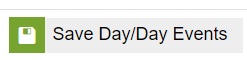
- Click Save Day/Day Events in the upper left of the screen to save the updates.
NOTE: When removing the checkboxes for Instruction and Attendance, any attendance associated with that day will be deleted.
Students Did Not Attend And Staff Did Not Work
- Uncheck School Day, Instruction, and Attendance checkboxes.
- Add a Day Event Type indicating the reason for the school closures.
- NOTE: Day Event names may vary per PSU, however each day event must have an associated state defined Standard Code. Required Standard Codes can be found in the Day Events article.
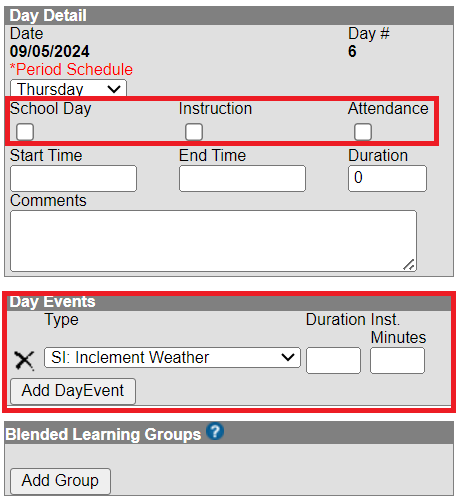
- NOTE: Day Event names may vary per PSU, however each day event must have an associated state defined Standard Code. Required Standard Codes can be found in the Day Events article.
- Click Save Day/Day Events in the upper left of the screen to save the updates.
NOTE: When removing the checkboxes for Instruction and Attendance, any attendance associated with that day will be deleted.
Students Had A Remote Instruction Day
- Leave School Day, Instruction, and Attendance checkboxes checked.
- Add a Day Event Type that has an associated Standard Code of either WC Weather Closure or EC Emergency Closure.
- NOTE: Day Event names may vary per PSU, however each day event must have an associated state defined Standard Code. Required Standard Codes can be found in the Day Events article.
- Add another Day Event Type that has an associated Standard Code of Remote Instruction.
- NOTE: Day Event names may vary per PSU, however each day event must have an associated state defined Standard Code. Required Standard Codes can be found in the Day Events article.
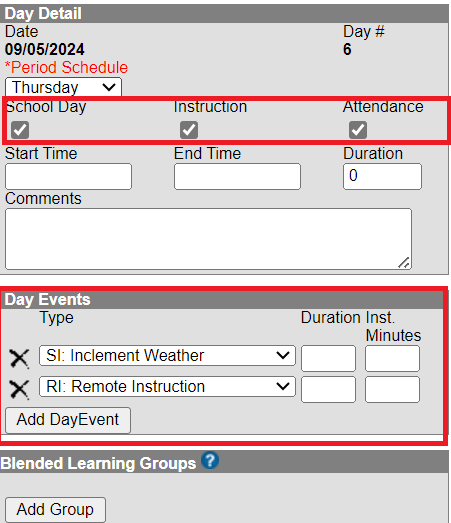
- NOTE: Day Event names may vary per PSU, however each day event must have an associated state defined Standard Code. Required Standard Codes can be found in the Day Events article.
- Click Save Day/Day Events in the upper left of the screen to save the updates.
Adding Instructional Days
If non-instructional days will be used as a make-up day for the missed instruction, select the make-up day and complete the following:
- Select the day that will be used for instruction.
- Select the appropriate period schedule from the dropdown.
- Check the School Day, Instruction, and Attendance checkboxes.
- Optional: Add a day event indicating a make-up day.
- Note: Day Event names may vary per PSU. Day Events that indicate instruction do not require an associated Standard Code.
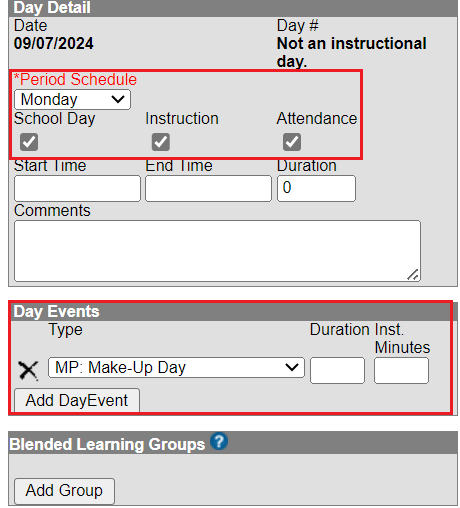
- Note: Day Event names may vary per PSU. Day Events that indicate instruction do not require an associated Standard Code.
- Click Save Day/Day Events in the upper left of the screen to save the updates.
If dates are added and term dates will change, adjust the term dates in Term Setup appropriately.
If dates are added that extend the school year, dates must be adjusted in Term Setup prior to adding dates in Day Setup.
Check the School Month intervals to ensure days are within the requirements of 16-26 days.
Print the Calendar Days Report
Use the print option to review the changes made.


Please refer to the SASA Manual for guidance on coding attendance taken on remote instructional days.

