
This article will assist users with creating an Ad Hoc Report using the Filter Designer to multi-select a group of students using the Student State ID.
See the Advanced Person Search article for a new multi criteria search option.
Prepare Data in Excel
- Open your data in Excel or Google Sheets.
- Enter the following formula in a new column.
=CONCAT(A2,”,”)
- Copy the formula to the other cells referencing the row number in Column A.
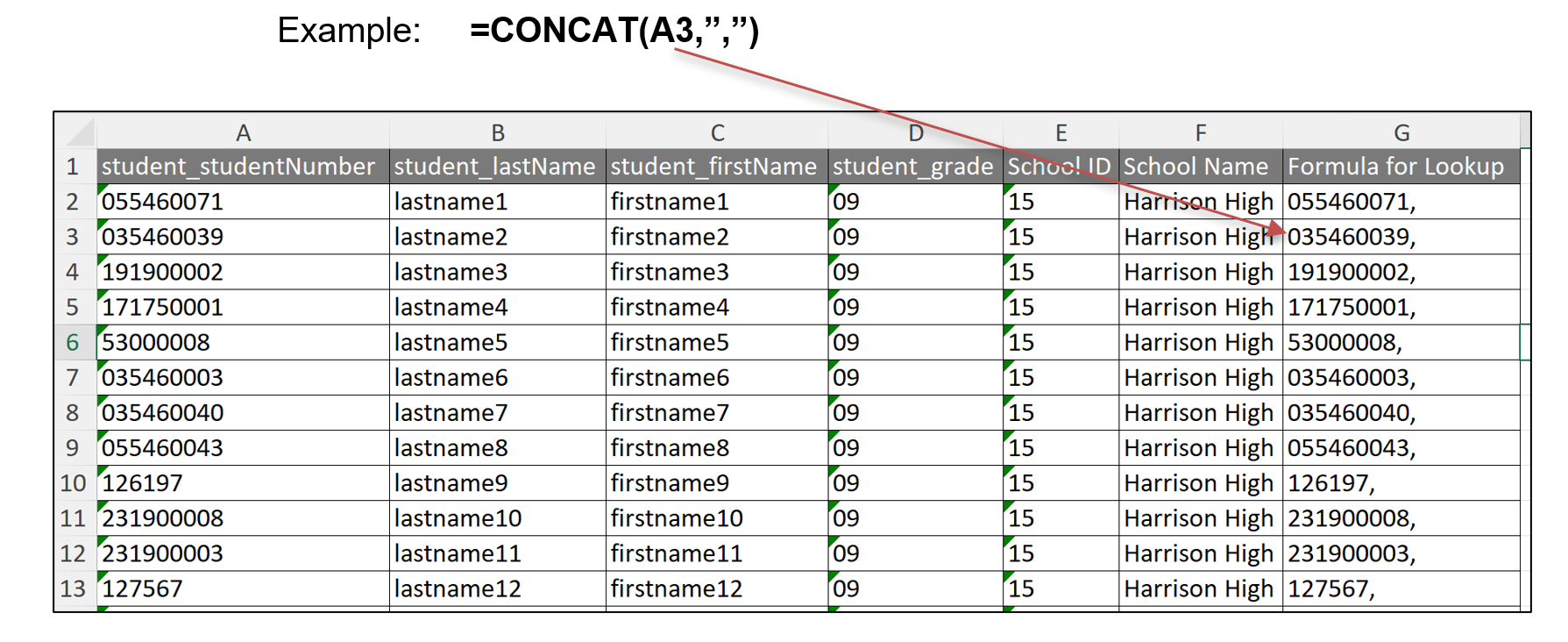
- Copy the cells that have the formula. (i.e. copy cells G2 through G13)
Google Sheets Directions: Tango directions for adding the formula in Google Sheets
Excel Video Directions: Video directions for adding the formula in Excel
Create an Ad Hoc Filter Using the Copied Student Numbers
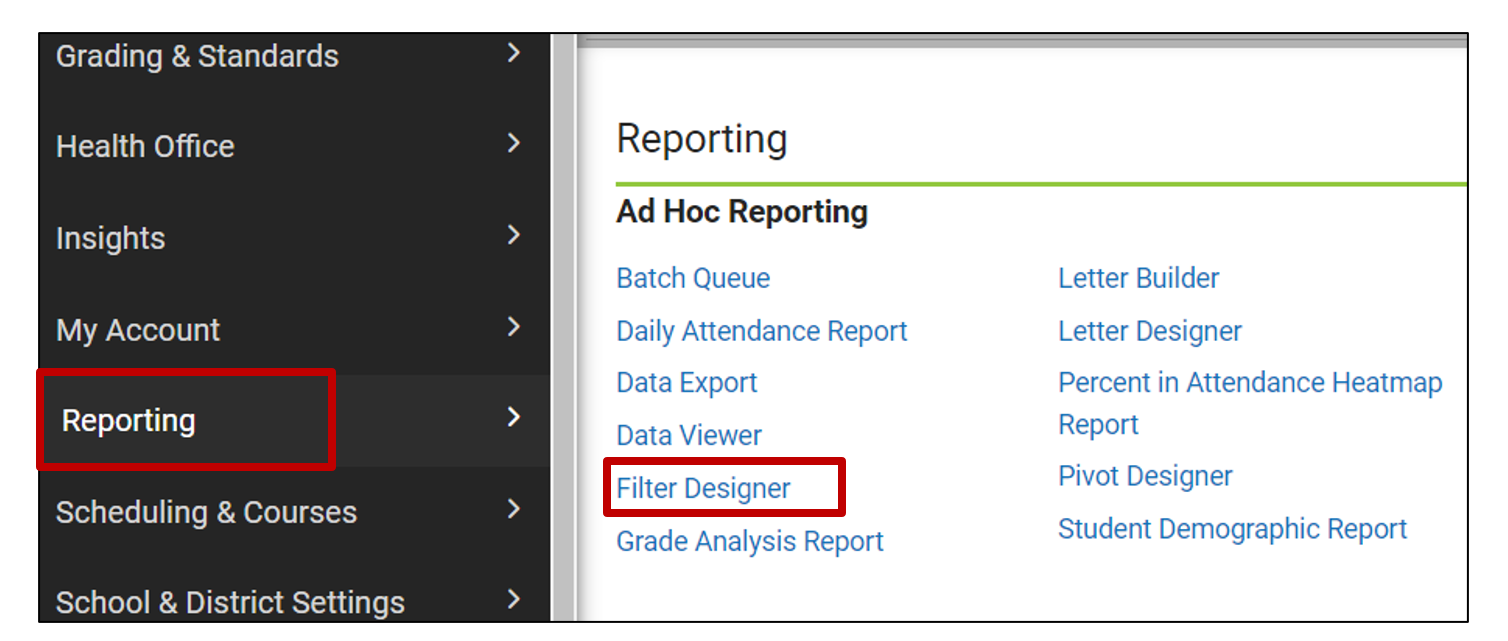
Navigation: Menu > Reporting > Ad Hoc Report > Filter Designer
- Open the Filter Designer in Infinite Campus.
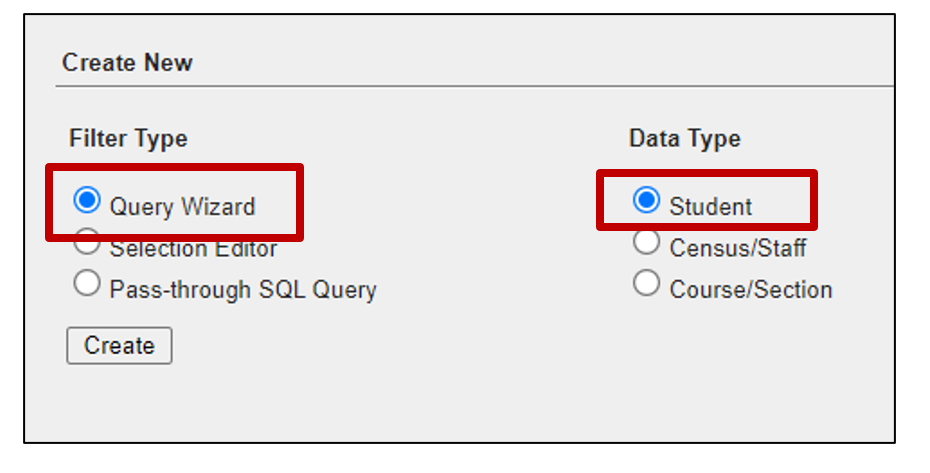
- Under the Create New section, choose Query Wizard for the Filter Type and Student for the Data Type
- Click Create
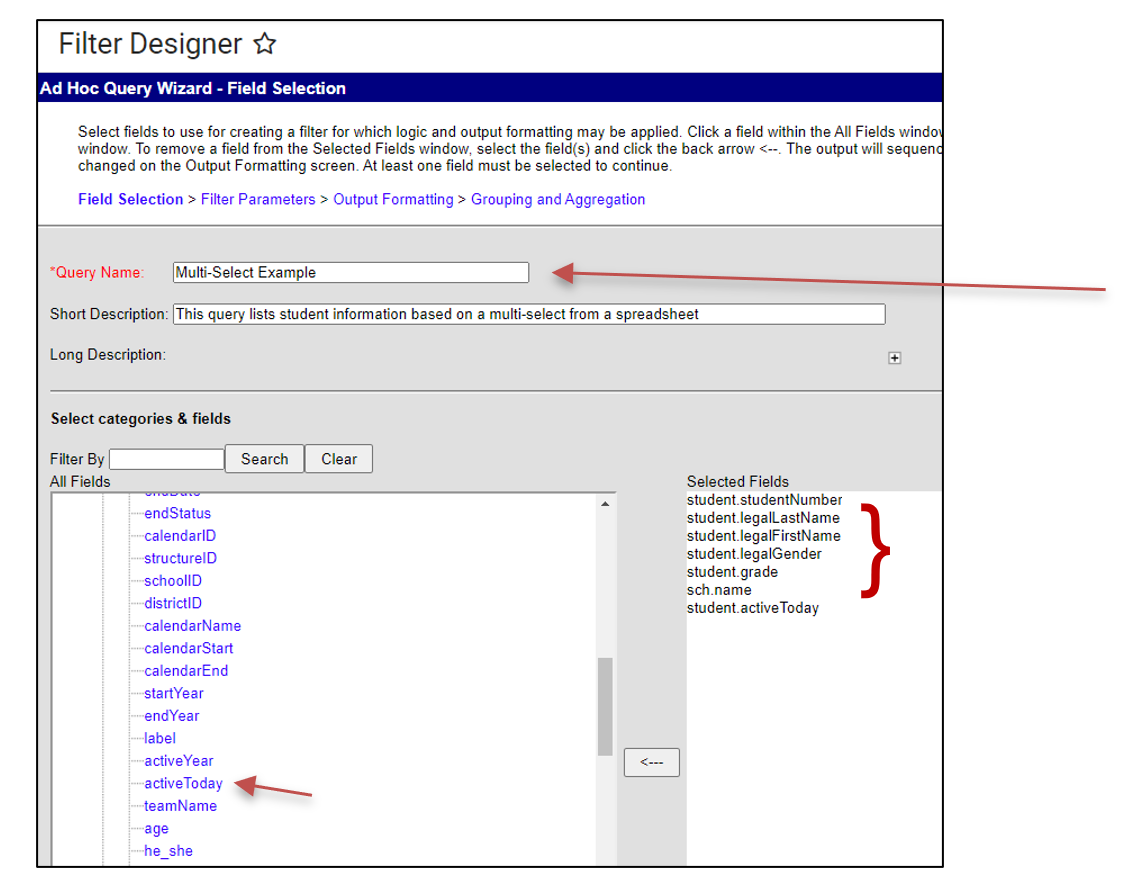
- Name the query and provide a description of the query (if desired)
- Choose the fields you want in your final query.
- For active students only, you must add the field activeToday
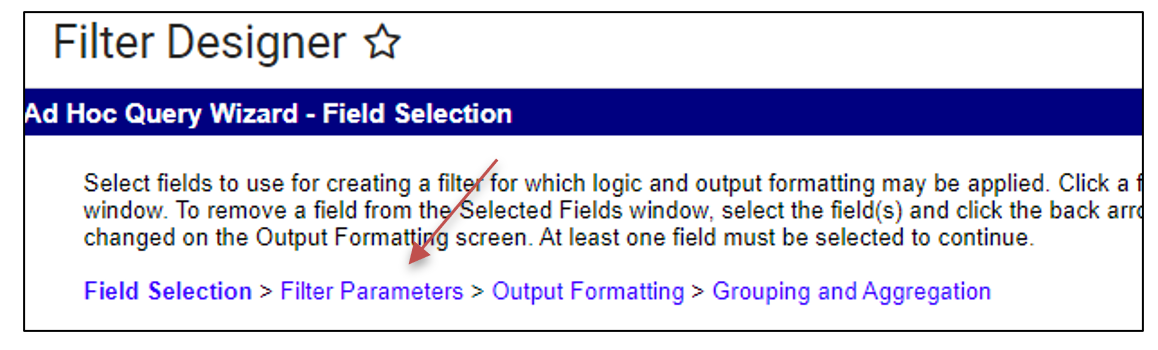
- Click Filter Parameters
- Click the
 to remove all fields except studentNumber and activeToday
 - Set the operator for studentNumber to “IN”
- Set the operator for activeToday to “=TRUE”
- For the value, paste the ID numbers with the comma from your spreadsheet.
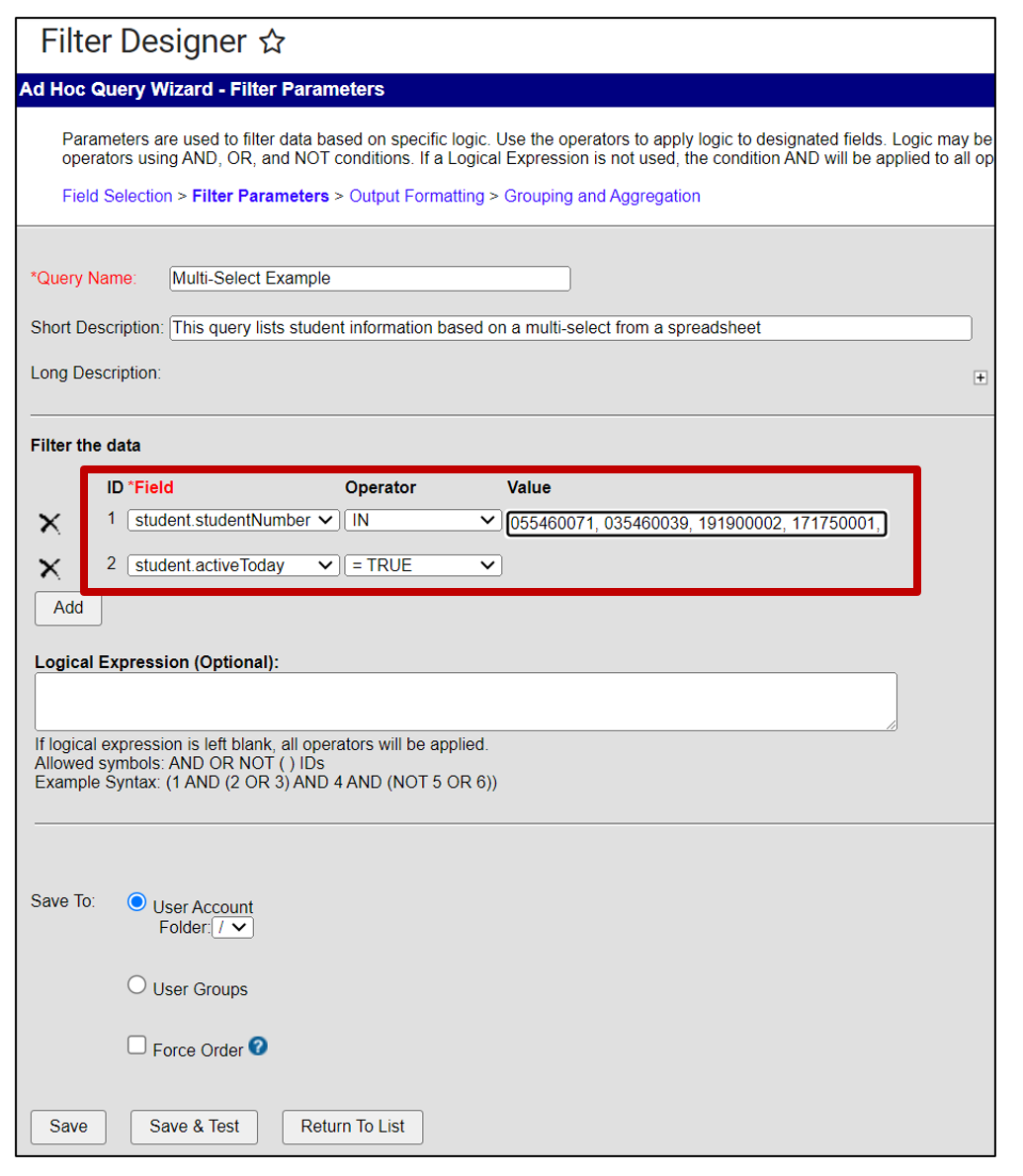
- Click Save or Save and Test
- Save and Test will give a view of your output.
 to remove all fields except studentNumber and activeToday
Using the Ad Hoc Filter
Using the created filter, a student list can be exported to many different formats or used to show the multi-selected students in the student selection menu for quick access. Created Ad Hoc Filters can be used in the Advanced Student search and many reports within Infinite Campus.
Navigation: Menu > Reporting > Ad Hoc Report > Data Export
Tango Directions to use the Filter
- From the main menu, choose the Data Export from the Ad Hoc Menu
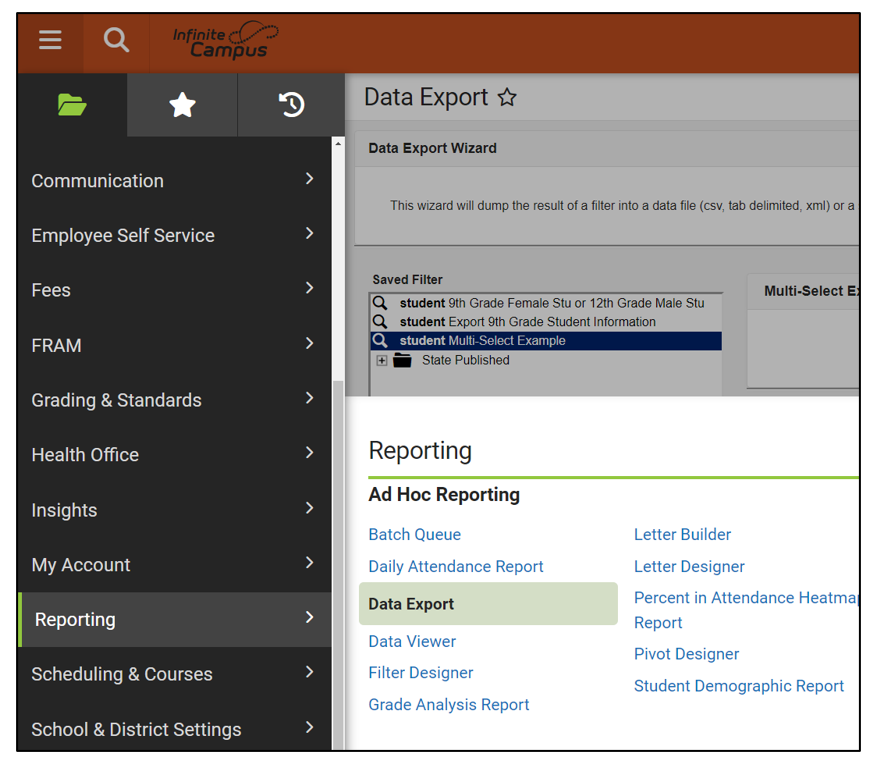
- A list of all your available filters will display.
- Click on the desired filter and choose the export format.
- Double clicking on a filter will display a list of the multi-selected students in the search menu
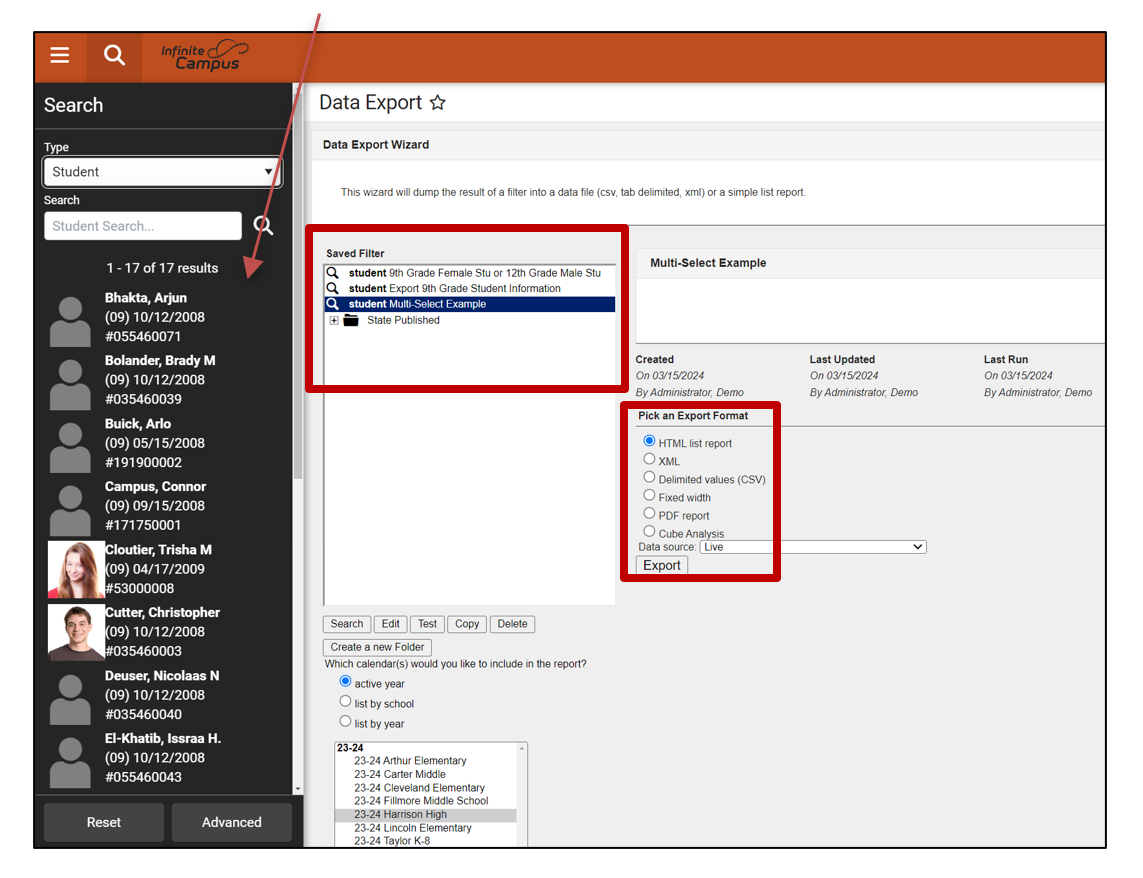
- Double clicking on a filter will display a list of the multi-selected students in the search menu
This article will assist users with creating an Ad Hoc Report using the Filter Designer to select students Title VI Affiliation information.
Navigation: Menu > Reporting > Ad Hoc Report > Filter Designer
- Open the Filter Designer in Infinite Campus.
- Under the Create New section, choose Query Wizard for the Filter Type and Student for the Data Type.
- Click Create
- Add "Title VI Affiliation" in the Query Name field.
- Provide a description of the query to help users identify the information included in the query.
- Choose the fields listed below. More fields can be added as needed for local PSU information.
| Pathway | Field |
|---|---|
| Student > Demographics | StateID |
| Student > Demographics | legalFirstName |
| Student > Demographics | legalLastName |
| Student > Demographics | grade |
| Student > Demographics | raceEthnicity |
| Student > Demographics | hispanicEthnicity |
| Student > Demographics | raceEthinicityFed |
| Student > Demographics | activeToday |
| Student > School | number |
| Student > School | name |
| Student > Demographics | tribalEnrollment |
| Student > Learner > Title VI | tribalAffiliation |
| Student > Learner > Title VI | indianIDNumber |
| Student > Learner > Title VI | title6ID |
| Student > Learner > Title VI | title6startDate |
 Add other fields as needed.
- Click Next to navigate to Filter Parameters.
- Optional: Click the to remove all fields except title6.StartDate.
- Set the title6.startDate operator to IS NOT NULL.

-
Click Save or Save and Test
- Save and Test will give a view of your output to confirm the output includes data as expected.
- Click Next to navigate to Output Formatting.
- Uncheck the following fields from the output
- student.activeToday
- title6.title5ID
 Check or uncheck fields as necessary.
- Enter a Sequence order for the columns to appear for the output.
- Add Column Headers as needed.
 Add Sequence and Column Headers as needed.
By default, Ad Hoc filters are saved to User Accounts. Once the Ad Hoc is created, save a copy to User Groups that may need access to the filter.

Additional Filter Options
Copy the above ad hoc filter and adjust the filter options to review other information.
Example 1: Filter for Students with Tribal Enrollment field values but no Title VI program.
Adjust the filter to student.tribalEnrollment IS NOT NULL and title6startDate IS NULL.

Example 2: Filter for Active Students with a Title VI program.
Adjust the filter to student.activeToday = TRUE and title6.startDate IS NOT NULL.

Use the Tango below for step by step instructions on creating the Title VI ad hoc.

