
This article will assist users in using No Show process. A student is considered a No Show when they are marked absent for more than half of the instructional day on their scheduled first day of enrollment during a current school year.
First Ten Day Options
- Option 1: No Show Students on the Enrollment Start Date Beginning Day One
- Process the student as a No Show student records on the first day of the school year or the student's enrollment start date.
- Option 2: Keep the Enrollment Active Until Attendance is Verified
- Students are marked absent until they are present for at least fifty percent of the instructional day or the eleventh instructional day is reached and then the student must be no showed.
- If a student returns within the first ten instructional days, use the No Show Student Returning Within Ten Instructional Days process to update the student's enrollment.
- Option 3: Move Enrollment Start Date Forward
- Manually update student's enrollment start date, section roster start dates (schedule), and remove attendance prior to the updated start date.
- Students should be no showed by eleventh instructional day of the school year.
When a student is no showed and the record remains a no-show during the nightly sync, the student will automatically be removed from third-party applications (i.e. TIMS, Clever, Canvas, ECATS).
Follow the District/School plan for taking attendance during the first ten instructional days. Submit attendance by the PSU designated time for reconciliation.
Student Absent First Day of Enrollment Filter
NCDPI has provided a "Student Absent First Day of Enrollment" ad hoc that identifies students who are absent for more than half of the instructional minutes on their first day of enrollment. Coordinators may need to create a local copy of the filter to share with user groups as necessary.
Use the provided filter to search for students who were absent on their first day of enrollment. Attendance calculations are updated nightly with the Attendance Aggregation process. Attendance can be refreshed before the nightly process in order to use the provided ad hoc filter. The Attendance Aggregation Refresh | Infinite Campus article recommends running the refresh only when today's attendance data or recent attendance modifications need to be included prior to the nightly automated process. It is also recommended this task be run after school hours for a limited number of calendars.
Navigation: Search Student > Advanced > Saved Filter > Select Filter > "Student Absent First Day of Enrollment" > Search


No Show Student Enrollment
Processing a student as a no show will:
- Remove the student from daily membership counts (and third-party extracts)
- End the student's enrollment in class rosters (the student's schedule can be restored in walk-in scheduler upon return)
- Remove the student from the Student search (the student can still be searched using All People)
Navigation: Select Student > Student Information > General > Enrollments
- Select the Enrollment record.

- Enter Start Date of 7/1/XXXX.
- A warning message will appear that attendance will be deleted. Click OK to close the warning message.
- Using the 7/1/XXXX date removes all attendance for the student.
- Leave Local Start Status.

- Check the No Show Checkbox.
- Enter End Date of 7/1/XXXX.

- Select a Local End Status (ref. SASA manual for End Status codes).
- Enter End Comments. (optional)
- Click Save.

Enroll a No Show Student Returning Within Ten Instructional Days
Steps to enroll No Show students that arrive within ten instructional days of their original enrollment date. For arrivals after ten non-attended days, see Enroll a No Show Student returning after ten instructional days.
Update Enrollment
Navigation: Search All People > Census > People > Enrollments
- Select the No Show Enrollment record.

- Update the Start Date to be the first day the student attended.
- Uncheck the No Show checkbox. This will remove all records of the "no show" status.
- Verify/Update Local Start Status code.

- Remove Local End Status code.
- Remove End Date.

- Verify Grade and Service Type.
- Enter a Start Comment. (optional)
- Click Save.

Restore Student's Schedule
Navigation: Menu > Student Information > General > Schedule > Walk-In Scheduler
- Click the triangle in the Load button to open the menu. Click Restore.

- In the pop-up window enter student's enrollment Start Date.
- Click the blue Restore button.
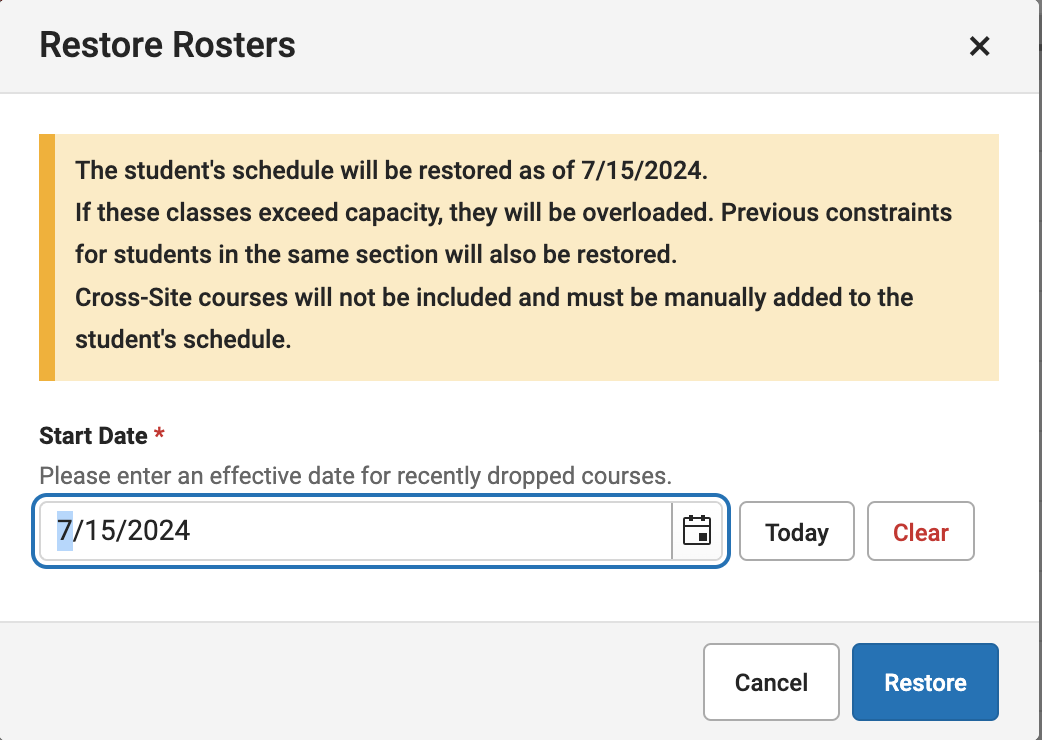
- A green pop-up will verify Schedule has been Restored.
Enroll a No Show Student Returning After Ten Instructional Days
Steps to enroll No Show students that arrive after ten instructional days of their original enrollment date.
Create New Enrollment
Navigation: Search All People > Census > People > Enrollments 
- Click New.
- Enter required Start Date, Local Start Status, Grade Level, Service Type.
- Add Start Comment. (optional)
- Click Save.
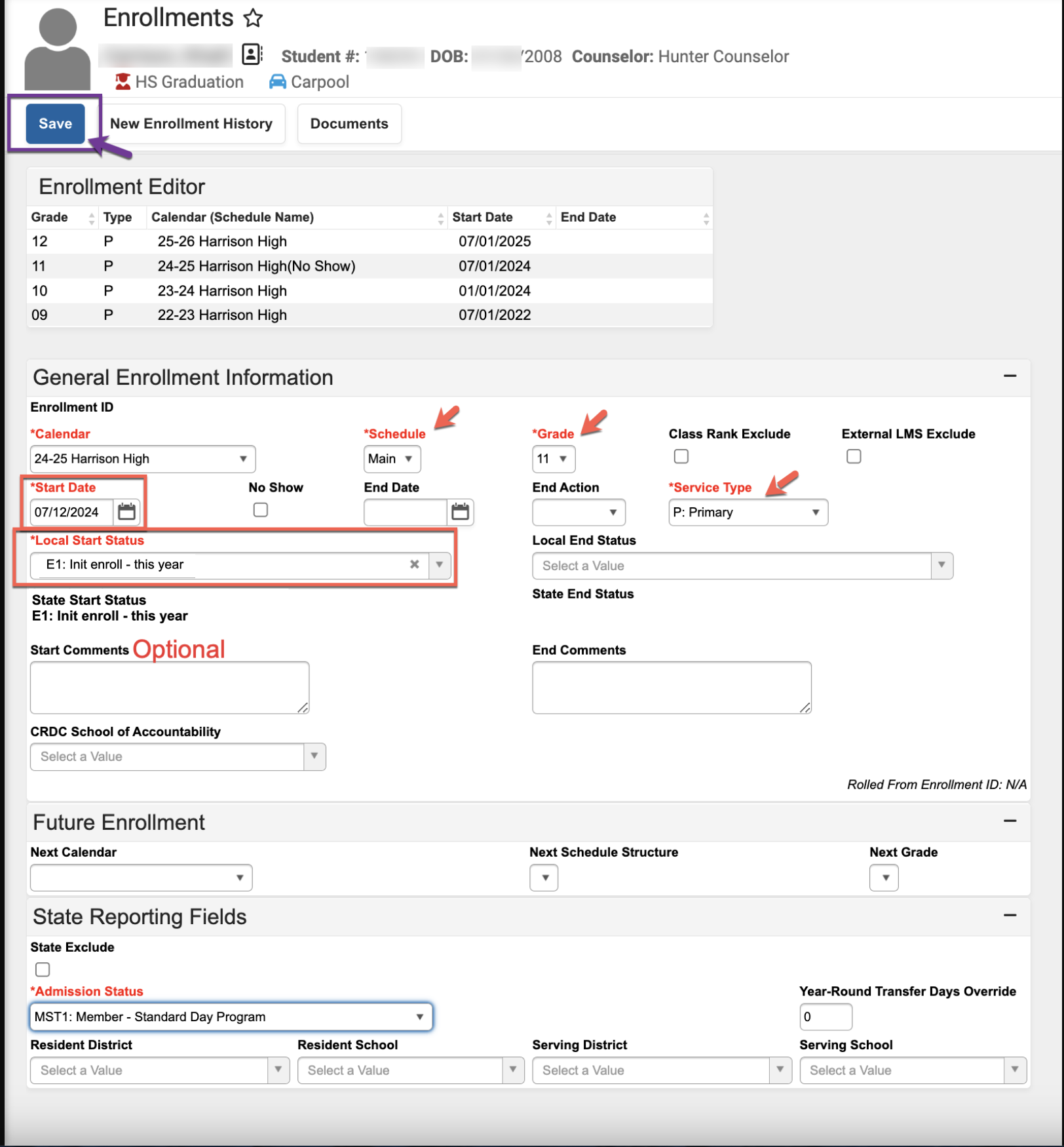
Restore Student's Schedule
Navigation: Menu > Student Information > General > Schedule > Walk-In Scheduler
- Click the triangle in the Load button to open the menu. Click Restore.

- In pop-up window, enter student's enrollment Start Date.
- Click the Restore button.

Move Enrollments Forward
- Delete attendance
- Change the section start dates
- Change the enrollment start date
- OR No Show, Un No Show and Restore Schedule
No Show Report
Navigation: Menu > Student Information > Reports > No Show Report
- Use the No Show Report | Infinite Campus to list students that have a No Show status.
- Verify that students listed have all required fields including the Start and End Dates of 7/1/XXXX, Local Start Status, and Local End Status.
TANGO - Process No Show After Day 1

