
Summary
Complete the Principal's Monthly Report (PMR) submission process after reviewing the PMR data and resolving applicable data issues.
The PMR Summary follows a Generate, Review and Submit process. Begin the process after the School Month has ended and the PMR Summary is available. Complete the PMR review and submission within the reporting timeline established by NCDPI School Business.
Use the (NC) School Month Verification validation to review the expected submission dates and the applicable (NC) PMR Submission Status - M# validation to confirm PMR submission status across the Public School Unit (PSU).
Important: NCDPI School Business expects the PMR to be submitted within 5 calendar days after the School Month End Date. NCSIS does not prevent a PMR from being generated or submitted after the expected submission date.
Understand the PMR Submission Process
The PMR Summary uses 3 actions during the submission process:
Generate
Select Generate to create the PMR Summary snapshot for the applicable School Month.
Generate the PMR Summary after the School Month has ended and the applicable PMR data is ready for review.
Review
Select Review to view the PMR Summary and confirm that the reported data is accurate.
Complete the applicable PMR data review before submission. If corrections are required, make the corrections to the applicable source data and review the updated PMR information before submitting.
Submit
Select Submit after the PMR Summary has been reviewed and the reported information is accurate.
Submitting the PMR completes the applicable School Month reporting process.

Important: Do not submit the PMR only because the report generated successfully. Complete the applicable Review PMR Data and confirm that the PMR Summary is accurate before submission.
Review the Submission Timeline
The PMR submission timeline begins after the applicable School Month End Date.
NCDPI School Business expects the PMR to be submitted within 5 calendar days after the School Month End Date.
| Timeline | Expected Action |
|---|---|
| School Month End Date | Complete the applicable School Month. |
| 1 calendar day after School Month End Date | Submission period begins. |
| Within 5 calendar days after School Month End Date | Review and submit the PMR. |
Note: The submission timeline is based on calendar days, not instructional days. The first calendar day after the School Month End Date is Day 1.
Review School Month Submission Dates
Use the (NC) School Month Verification validation to confirm the School Month configuration and expected submission dates.
The validation can be used at the school or PSU level to review the applicable School Month information.
Review:
- School Month
- School Month Start Date
- School Month End Date
- Number of instructional days
- Submission Start Date
- Submission End Date
The submission period begins 1 calendar day after the School Month End Date and ends 5 calendar days after the School Month End Date.
Calendars without a School Month configuration are identified as School Month Not Configured.
Important: The dates displayed by the validation represent the expected NCDPI School Business submission timeline. NCSIS does not prevent a user from generating or submitting the PMR after the displayed submission date.
Generate the PMR Summary
After the School Month has ended:
- Open Reporting > NC State Reporting > NC PMR Collection.
- Select PMR Summary as the Extract Type.
- Select the applicable School Month Sequence.
- Select the applicable school month calendar.
- Select Generate.
- Allow the PMR Summary generation process to complete.
Note: The PMR Summary is available for generation beginning after the applicable School Month has ended.

Refer to Generate Principal's Monthly Report (PMR) for additional information about PMR generation, Preview Period behavior, and the PMR Data Validations.
Review the PMR Summary
After generation is complete:
- Select the applicable PMR Summary.
- Select Review.
- Open the completed report.
- Review the reported information.
- Confirm that the applicable PMR data review process has been completed.
- Resolve unexpected results before submission.
Refer to Review PMR Data and Review PMR Summary for the complete data review workflow.
Important: If a correction is made to enrollment, schedule, attendance, calendar, or other source data, confirm that the corrected information is reflected in the applicable PMR reports before submitting.
Submit the PMR
Submit the PMR after confirming that the PMR Summary accurately reflects the reviewed data.
- Return to the applicable PMR Summary.
- Confirm that the correct School Month, school, and calendar are selected.
- Confirm that the PMR Summary has been reviewed.
- Select Submit.
- Complete the applicable submission confirmation.
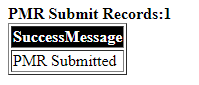
- Confirm that the submission completes successfully.
Warning: Submit the PMR only after the data has been reviewed and confirmed as accurate. If a correction is required after submission, complete the State Report Deletion Requests process. NCDPI School Business must approve the deletion before the corrected PMR can be generated and submitted.
Save the Submitted PMR Summary
After the PMR has been successfully submitted, consider exporting and saving a copy of the final PMR Summary according to local PSU recordkeeping practices.
The save report can provide reference for:
- The PMR data submitted for the School Month.
- The final reported values at the time of submission.
- The user associated with the submission.
- Comparison with future School Month reporting, when needed.
Tip: Use a consistent file name and storage location for each School Mont so submitted PMR Summaries can be easily located for future reference.
If a Correction Is Needed After Submission
If an error is identified after the PMR has been submitted, do not attempt to correct and resubmit the report without first completing the required deletion process.
A submitted state report must be deleted before the corrected report can be generated and submitted again. NCDPI School Business must approve the deletion request.
- Review the issue to determine what source data requires correction.
- Complete the State Report Deletion Requests process.
- Wait for the deletion request to be reviewed and approved by NCDPI School Business.
- Confirm that the submitted PMR has been deleted.
- Correct the applicable source data.
- Complete the applicable PMR data review again.
- Generate the corrected PMR Summary.
- Select Review and confirm that the corrected information is reflected in the report.
- Select Submit to submit the corrected PMR.
- Confirm the updated submission status.
Refer to State Report Deletion Requests for instructions for requesting deletion of a submitted state report.
Important: NCDPI School Business must approve the deletion of a submitted PMR. Do not make source data corrections with the expectation that the submitted PMR will automatically update. After the submitted report is deleted, correct the source data, review the updated PMR, and submit the corrected report.
Confirm PMR Submission Status
After schools complete their PMR submissions, use the applicable (NC) PMR Submission Status - M# validation to review submission status across the PSU.
Select the validation corresponding to the School Month being reviewed.
For example: (NC) PMR Submission Status - M1
The validation provides 3 rules.
| Rule | Purpose |
|---|---|
| (NC) PMR Submitted - M# | Identifies PMRs reported as submitted for the applicable School Month. |
| (NC) PMR Not Submitted - M# | Identifies PMRs that have not been submitted for the applicable School Month. |
| (NC) PMR Submitted and Not Submitted with PSU level Submission Status - M# | Provides PSU-level submission status information for the applicable School Month. |

Review PMR Submission Status
At PSU level:
- Run the applicable (NC) PMR Submission Status - M# validation.
- Review (NC) PMR Submitted - M#.
- Review (NC) PMR Not Submitted - M#.
- Review (NC) PM Submitted and Not Submitted with PSU level Submission Status - M#.
- Identify schools that have not completed the expected PMR submission.
- Follow up on incomplete submissions, as applicable.
Tip: Use the submission status validation throughout the submission period to monitor completion across the PSU rather than checking each school individually.
If the Submission Due Date Has Passed
If the expected NCDPI School Business submission date has passed and the PMR has not been submitted:
- Notify NCDPI School Business about the delay including the reason.
- Complete the applicable PMR data review.
- Resolve identified data issues.
- Select Generate, then Review the applicable PMR Summary.
- Submit the PMR.
- Confirm the updated submission status using the applicable (NC) PMR Submission Status - M# validation.
Important: NCSIS does not prevent a PMR from being generated or submitted because the expected submission date has passed. The 5 day timeline represents the submission expectation established by NCDPI School Business.
PMR Submission Checklist
- School Month End Date confirmed
- Expected submission date reviewed
- PMR validations reviewed
- PMR data review completed
- PMR Summary generated
- PMR Summary reviewed
- Unexpected results resolved
- PMR submitted
- Submission status confirmed
- PSU level submission status reviewed, as applicable
- State Report Deletion Request completed, if a submitted PMR required correction
Month 2: After the Month 2 PMR has been verified and submitted, continue to Review PMR Best 1 of 2 ADM.

