
The future school year must be created prior to rolling forward calendars.
Program Calendars
When rolling forward calendars, the naming template for calendar defaults to the school's name. This means that the program calendar names may need to be updated. The following steps walk through rolling forward program calendars and updating the calendar information needed for program calendars.
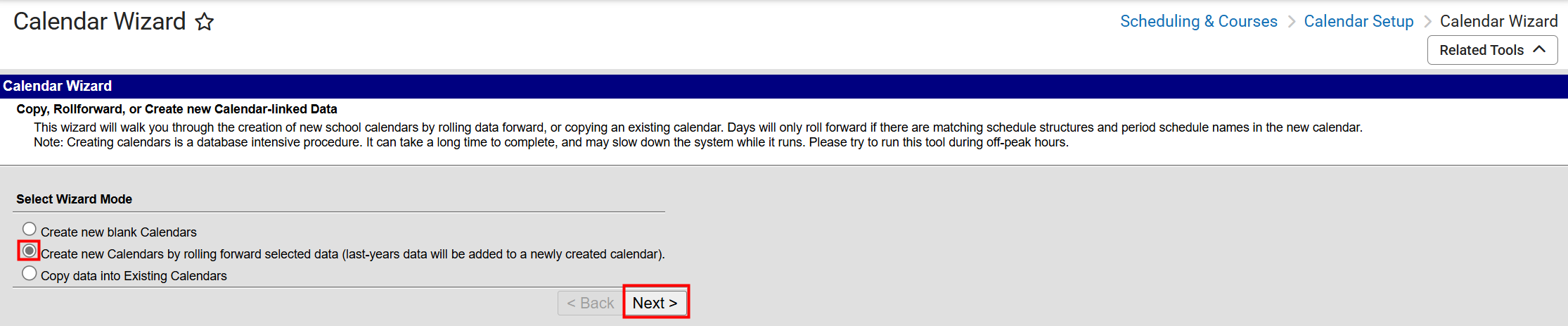
Navigation: Menu > Scheduling & Courses > Calendar Setup > Calendar Wizard
- Select Create new Calendars by rolling forward selected data, then click Next.
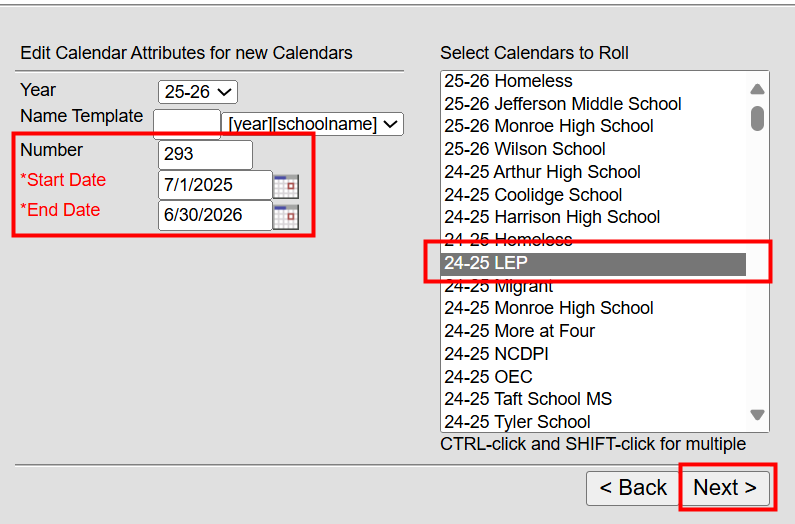
- Select the year to create, ex: 25-26. The name template should remain [year] [schoolname]
- Enter the number for the school calendar as follows:
- 293 - LEP
- 296 - NCDPI
- 292 - OEC
- 297 - OHP
- 294 - OMP
- Enter the Start date of 07/01/YYYY.
- Enter the End Date of 06/30/YYYY.
- Select the calendar to roll forward and click Next.
- Select the data to copy. Include the following:
- Calendar attributes
- Schedule structures
- Term Schedules
- Period Schedules
- Grade Levels
- Click Run Wizard to create the calendar.
- The calendar will display the new year YY-YY NCDPI school. Navigate to the future year and select the NCDPI school.
- Select the calendar (Refresh the browser if the calendar is not visible.) and navigate to Scheduling & Courses > Calendar Setup > Calendar Information.
- Locate the Number to ensure it matches with the list in step 3.
- Change the "NCDPI" part of the name to the corresponding calendar name as listed below. Ex: 25-26 NCDPI would be updated to 25-26 LEP for school number 293.
- YY-YY LEP
- YY-YY NCDPI
- YY-YY OEC
- YY-YY OHP
- YY-YY OMP
- Locate the Techer Day field and enter the Teacher Day Minutes. Work with the Exceptional Children's department within the PSU to determine the value for this field.
- Other values are optional for the program calendar.
- Click Save to update the calendar information.


Repeat Steps 1-15 for each program calendar.
Term Setup for Program Calendars
At least one term must exist in the calendar. Terms may be copied when rolling the calendar forward, however the term dates must be added each year.
Navigation: Menu > Scheduling & Courses > Calendar Setup > Term Setup
Existing Term
- Select the term name in the Term Schedule/Terms Editor.
- Add the Start Date of 07/01/YYYY and and End Date of 06/30/YYYY.
- Click Save Term Schedule/Terms.
Add New Terms
- Click New to add the term.
- Enter a Name for the term.
- Enter a abbreviated Name in Term Detail.
- Enter a Sequence.
- Enter a Start Date of 07/01/YYYY.
- Enter an End Date of 07/01/YYYY.

Period Setup for Program Calendars
At least one period schedule must exist in a calendar. If a period schedule did not copy into the new calendar, a new period schedule must be created.
Navigation: Menu > Scheduling & Courses > Calendar Setup > Period Setup

Day Setup for Program Calendars
A Day Reset is required at the start of the school year and creates the calendar days. On a newly created calendar, before the Day Reset is done, the calendar displays all days in gray; after the Day Reset is completed, days within the date range of the calendar in white, unless it has been modified to not be a school day.
Navigation: Menu > Scheduling & Courses > Calendar Setup > Day Setup
- Click on Day Reset.
- Enter the start date of 07/01/YYYY.
- Enter the end date of 06/30/YYYY.
- Duration for program schools is 0.
- Check Fill Missing Days Only.
- Check Monday - Friday.
- Click Create Days.

Validation Reports
Navigation: Menu > Reporting > Data Validation > Data Validation Report
There are two state validation reports that will help review program calendar information. To review the program calendar information for calendars in a future year, the (NC) ECATS Integration Future Year Data Validations should be used. To review program calendar information for the current year, the (NC) ECATS Integration Current Year Data Validations should be used.
Central Office Calendar
The Central Office Calendar will also need to be rolled forward; however, the calendar name will not have to be updated. Follow the Program Calendar section to roll forward the calendar.
You’ve completed this section.
Choose where to go next.
← Return to End of Year Overview Continue to Create Future Enrollments →
