
Course masters are created from state courses in the Course Management tool, which is controlled by NCDPI. The Master Course Code list can be found on the NCSIS (powered by Infinite Campus) | NC DPI website. When new courses are added to the Course Management tool, new course masters can be created. See the Creating Course Masters article for key steps necessary for creating course masters in North Carolina. See the information below for updating course names and credits according to changes set by NCDPI each year.
Course Name Updates
NCDPI may update course names each year. These updates are made at the state level and published to each PSUs state courses in the Course Management tool on July 1 each year. While the course management tool reflects the updated state course names, existing local Course Master names are not updated automatically.
The steps below outline how to update local Course Master names to align with the revised state course names. This process may be completed at any time during the school year in which the update occurs.
When updating Course Masters, only push changes to courses for the school year in which the course name change takes effect. Do not update courses for prior school years.
Navigation: Menu > Grading & Standards > Course Masters > Course Master Information
- Search and select the Course Master(s).

- In the Name field, update the name to match the new course name according to the Course Master list.

 Before Course Name Change
 After Course Name Change
- Click Save.
- Click Push To Courses to push the course name update to course and sections where the course is available. Be sure to only push to the year where the course name is changing as to not impact the course name for current or previous years.

Multiple course masters can be updated and pushed at one time. The Push All Course Masters | Infinite Campus tool will push all course master's to the selected calendars.
Course Credit Changes
NCDPI may update course credits for some courses each year. Updates are reflected by the GPA weight at the state level and published to the course management tool. While the course master reflects the updated course GPA weight, existing course credit in the final grade grading tasks must be updated manually.
The steps below outline how to update local Course Master final grade grading task to align with the revised state course code. NCDPI will complete course changes on July 1. Once the changes occur, the local course masters must be updated. When updating Course Masters, only push the changes to courses for the school year in which change takes effect. Do not update courses for prior school years.
Navigation: Menu > Grading & Standards > Course Masters > Course Master Information
- Search and select the Course Master(s).

- The GPA Weight is a field that is controlled by NCDPI and adjusted to the course in the course management tool. It is recommended to review the GPA weight in the Course Setup section of the course master information tool to ensure the value is updated.


- Navigate to Grading Tasks using the related Tools menu.

- Select the Final Grade Grading Task.
- Update the Credit value to match the new credit value listed in the Master Course Code List from NCDPI.

- Click Save to update the Credit.
- Navigate to the Course Master Information tool using the Related Tools menu and click Push To Courses to push the course grading task update to course and sections where the course is available. Be sure to only push to the year where the course credit is changing as to not impact the course credit for previous years.
Multiple course masters can be updated and pushed at one time. The Push All Course Masters | Infinite Campus tool will push all course master's to the selected calendars.
NCDPI has collaborated with Infinite Campus to incorporate Historical Disabled Course Codes into NCSIS. When a course is disabled, it will have an end date added in the Course Management tool and be added to the NC State Disabled Course Catalog. The information below provides information on where to find the disabled course information. Filters have been provided by NCDPI to help PSUs determine if any disabled courses exist or have sections in the year the course will no longer be available.
Course Management
An end year has been added to each code that is no longer available for use. The end year for the course codes can be found in Course Management.
Scheduling & Courses > Courses > Course Management
- The End Year displays the year the course was disabled.
- Use the Search options at the top of the list to search for specific courses.

Course Masters
Any course master connected to a disabled state course code was moved from the NC Course Catalog to the NC State Disabled Course Catalog. Course Masters for historical disabled course codes were also created and added to the NC State Disabled Course Catalog. This catalog is for NCDPI use only - PSUs should not modify the state disabled course catalog.
Grading & Standards > Grading & Standards Administration > Course Catalogs.

This update allows staff with Transcript tool rights to add grades with disabled course codes as needed for transfer students. This also allows the ability to update/correct active students’ transcript records listed with disabled course codes.
Adding Disabled Transcript Grades
Student Information > General > Transcripts
When adding a new grade with a disabled course number, do not uncheck the Auto-fill box. Leaving the box checked ensures the correct data is placed in the appropriate fields for the state code, state code name, and GPA Weight. The Course Number dropdown will indicate that the course is in the NC State Disabled Course Catalog. Other fields must be completed manually. Course names have been shortened to 30 characters to meet IC's character limit.

Disabled Course Code Filters
NCDPI has provided filters to identify courses that have been disabled but exist in the year the course has been ended. If course section placements were copied to the future year in the calendar roll forward process, the sections will need to be deleted prior to deleting the course code in the future year.
Course codes that have been disabled must be deleted from the course/section list in the first year the course code is no longer available. Use the filters below to identify the disabled course codes.
Disabled Courses: Sections Exist in Calendar
This filter will return disabled course codes in the context selected that have existing sections.
Reporting > Ad Hoc Reporting > Filter Designer
- Select the future year in the context. This filter can be used for All Schools or by individual calendars.
- Expand the State Published folder.
- Select the curriculum Disabled Courses: Sections Exist filter.
- Select Test or Export to see the courses that are active in the future year.

The report will show disabled courses with sections, and which calendar the section is associated with. Use the Export to Excel or Export to PDF to export the data into a file.
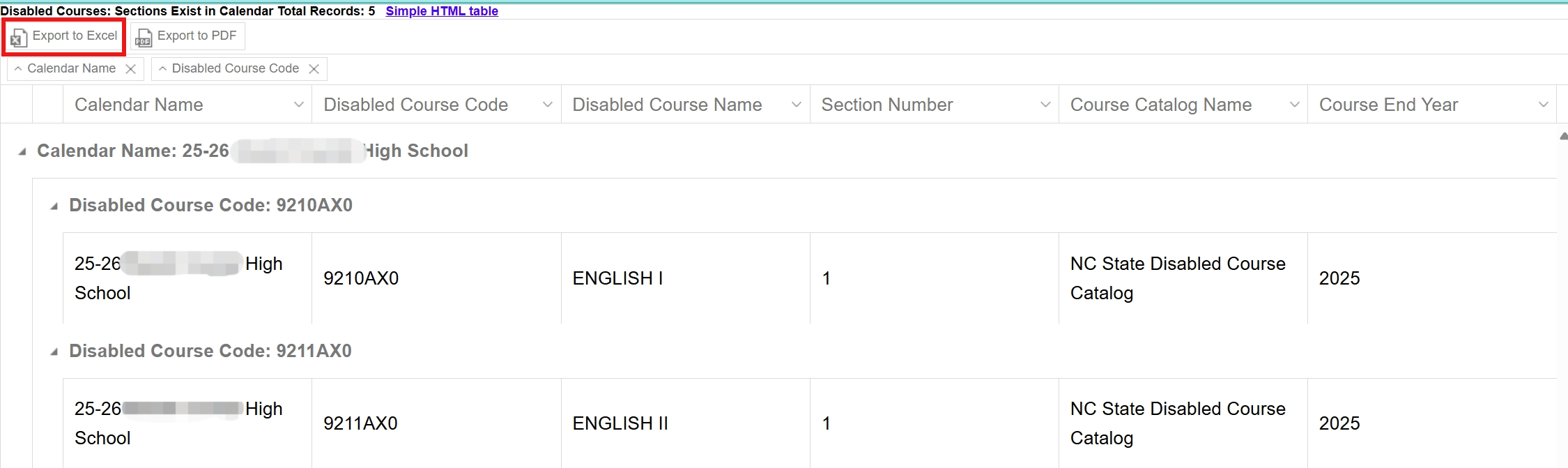 Disabled Sections Exist HTML View
 Disabled Sections Exist Excel View
Make sure the context is the future year.
- Select the corresponding calendar in the context.
- Search Course/Section search and search the course that contains sections.
- Expand the sections by clicking the + the course to open section Information.
- Click Delete to delete the sections.
Scheduling & Courses > Courses > Section Information

Once sections are deleted, click on the course to open the course information tool. Click Delete to delete the course. Disabled courses that are deleted will not display on the Disabled Courses: Courses Exist filter.
Disabled Courses: Courses Exist in Calendar
This filter will return disabled course codes in the context selected. Run this filter after the Disabled Courses: Sections Exist filter to ensure all disabled courses are deleted.
Reporting > Ad Hoc Reporting > Filter Designer
- Select the future year in the context. This filter can be used for All Schools or by individual calendars.
- Expand the State Published folder.
- Select the curriculum Disabled Courses: Courses Exist.
- Select Test or Export to see the courses that are active in the future year.

The report will show disabled courses, and which calendar the course is associated with. Use the Export to Excel or Export to PDF to export the data into a file.
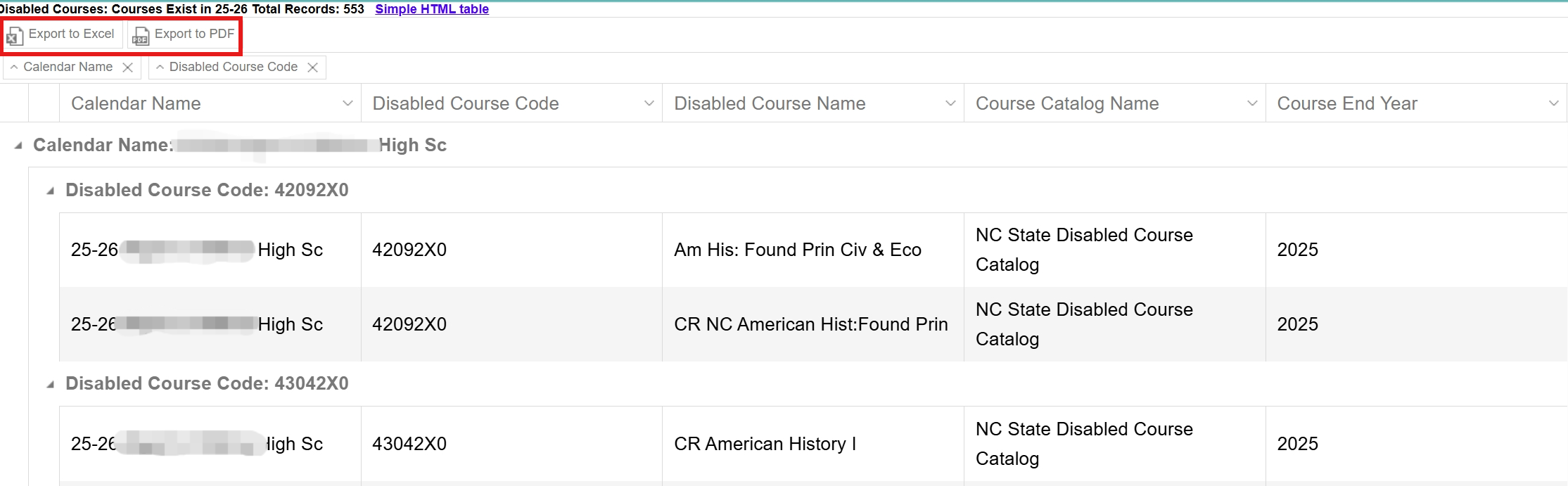 Disabled Courses Exist HTML View
 Disabled Courses Exist Export to Excel View
Make sure the context is the future year.
- Select the corresponding calendar in the context.
- Search Course/Section search and search the course(s) that have been disabled.
- Select the course to open Course Information.
- Click Delete to delete the course.
Scheduling & Courses > Courses > Course Information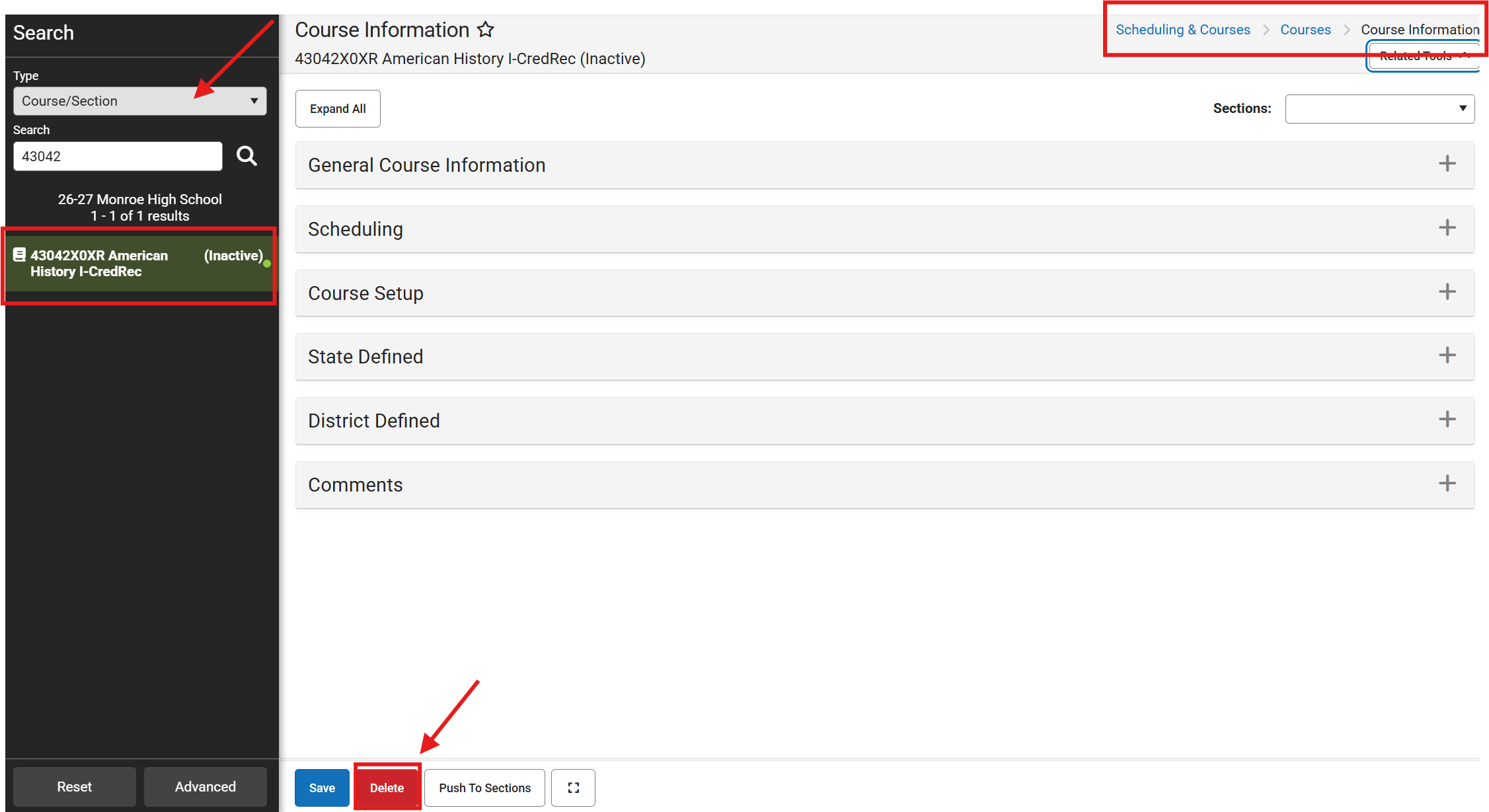
Once all courses have been deleted, generate the filter again to ensure no disabled courses are in the calendar context.

