
NOTE: Once you update user roles, the changes will take effect AFTER the next overnight sync.
Adding SchoolNet Roles
Navigation: Census > Staff > District Assignments

Select a Staff Person: If a staff person is not selected, click Open Person Search tool to search by the staff person's name. Search for staff using advanced searches or Ad Hoc Filters as needed. Select the staff person's name to open the District Assignment tool. If a staff person was already selected, the District Assignment tool will open automatically.

- Select the District Assignment for the school where the SchoolNet role should be assigned.
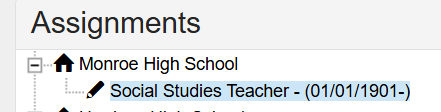
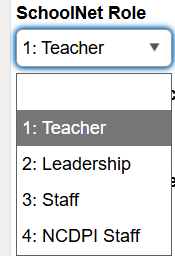
- Choose the SchoolNet Role from the dropdown list.
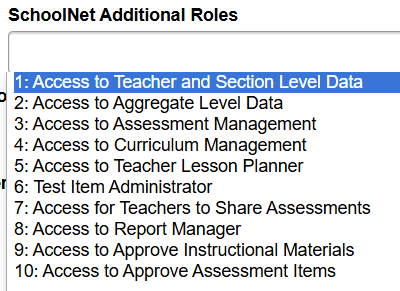
- Choose any Additional Roles as necessary.
- Click Save to update the roles for this district assignment.
District Level Leadership in SchoolNet
Assign District Level Leadership rights to users using a District Assignment in a home location of the Central Office school. This district assignment will be assigned the Leadership SchoolNet role.

If the user needs access to the Benchmark Bank, add the additional role of "Test Item Administrator"

Understanding the Roles
Role1: Teacher
Teachers have what they need natively!
All the roles and permissions they need to conduct classes with their students are within the teacher role. This includes things like:
Using the lesson planner
Searching for instructional materials or classroom bank assessment items
Schedule, administer, and score assessments
Only add permissions if you want a teacher to contribute outside of his/her classes
EX: Access to Teacher Lesson Planner
Role 2: Leadership
Leadership has what they need natively!
All the roles and permissions they need to provide direction to teachers. This includes things like :
Monitoring data by standards or student-created groups
Providing support for teachers to find instructional and assessment resources
Reviewing teacher assessment data
Collecting and reviewing teachers' lesson plans/planners
Only add permissions if you need :
Test Item Administrator (to create/edit assessment items, approve items/passages/rubrics
Access to Curriculum Management (to manage/schedule curriculum, approve materials created in Schoolnet)
Role 3: Staff
A person who is not a member of other user roles (e.g., Teacher, Leadership) and who is employed by the school district.
Does not have any student rosters attached without adding operations
Add any of the additional operations as needed, based on the responsibility of the individual staff member
Additional Permissions (Optional Roles)
- Access to Teacher and Section Level Data
- Access to Aggregate Level Data
- Access to Assessment Management
- Access to Curriculum Management
- Access to Teacher Lesson Planner
- Test Item Administrator
- Access for Teachers to Share Assessments
- Access to Report Manager
- Access to Approve Instructional Materials
- Access to Approve Assessment Items
Additional Permissions
Testing
Access to Approve Assessment Items
For a user whom the School or District might designate to approve the assessment items created by teachers
Review and approve items, passages, or rubrics
Test Item Administrator
For District and School Test Coordinators (NOT Teachers)
Must be used in addition to the “Access to Assessment Management” role (+AM)
Access to test items at an institution
Create and edit test items for an institution
Review item, passage, or rubric
Access to Assessment Management (+TIA)
For District and School Test Coordinators
Must be used in addition to the Test Item Administrator role.
District Level User accesses test
Created at the District level, and can also see School Level Benchmarks
School Level User accesses test
- Created at their school or tests that have been shared with their school by the District Test Coordinator
Operations aligned with this role will enable these users to perform all tasks within the system.
Add or update student responses, create and edit tests for an institution, create test windows, generate student answer sheets, modify tests, pre-slug OMR forms, review items, passages, or rubrics, schedule tests, view test content, and view restricted content
Data and Reporting
Access to Teacher and Section Level Data
Caution -allows access to student-level data, including Program Enrollment, Standardized Test Data, and Demographic Information
Consider this role for school leadership that should not have access to the default Leadership role
District Level User- ALL student and teacher data across the district
School Level User- ALL student and teacher data at their school
View basic student information
View student contact information
View Teacher and Section Level Data
Access to Aggregate Level Data
For district-level staff needing access, but not student access
See aggregate level data (subject, grade)
Users cannot drill down to the student level
View student contact information
View Published Reports
Access to Report Manager
For a user who might be designated by the School or District to create and manage reports.
Users will be able to :
See student data
View published reports
Create and edit reports
Manage reports
Curriculum
Access to Approve Instructional Materials
For a user who the School or District might designate to approve materials created by teachers
- Review Instructional Materials
Access to Curriculum Management
For District and School Curriculum Coordinators
District Level User- Create, Edit, and Schedule DISTRICT-level curriculum
School Level User- review school Lesson Plans and Instructional Units that are created by teachers and staff and submitted to the school for materials approval to promote the material to a shared School or District Instructional Materials Resource Bank
Manage curriculum
Review instructional material
Teachers
Access to Teacher Lesson Planner
For a user whom the School or District might designate to review lesson plans
View/ Manage instruction
Access for Teachers to Share Assessments
For a teacher who needs the ability to share assessments with other teachers within a school
Teachers can now use co-authoring, which allows for sharing across the state
Teachers with this role can also create “School Assessments,” which leaves data in the “Benchmark Dashboard” tab
Create and edit tests for an institution
Schedule tests
Other Possible Staff Roles:
SLMC-School Media Coordinators and ITF-Instructional Tech Facilitators
Scenario 1 – You have a full class schedule assigned to you in Infinite Campus = TEACHER
Scenario 2 – You have at least 1 class scheduled in IC + you collaborate with other teachers school-wide = TEACHER+
Scenario 3 – You work at one or more schools within the district – but do NOT have a class schedule = STAFF+
CAUTION: For Scenarios 2 and 3, adding the “Access to Teacher Lesson Planner” role allows access to school-wide teacher lesson planners
Reminders for Benchmarks:
Access to Benchmark Assessments Items is restricted to users at the District Level
District Level Leadership with Test Item Administrator
OR
District Level Staff with Test Item Administrator and Access to Assessment Management
Benchmark Assessments should be created with items under the publisher name NCDPI_Benchmark (or district-created items that you have created and shared at the district level only)
Benchmark Assessments should be created using “Create a Test Manually” (Do Not use “Create an Express Test” for district benchmark assessment
Additional Help:
If you have questions or need help setting up roles and
permissions for your LEA/school, please have your LEA SchoolNet lead contact the Home Base Support Center through ServiceNow using their NCID user ID and password, or call (919) 807-4357.
There are two methods that can be used to generate a report of SchoolNet roles in NCSIS.
Note: Tool rights are assigned at the discretion of each PSU. Access levels may vary based on local policies, job roles, and SIS management practices. If you require adjustments to tool rights, please contact your SIS Coordinator for assistance.

